> ## Documentation Index
> Fetch the complete documentation index at: https://docs.browseros.com/llms.txt
> Use this file to discover all available pages before exploring further.
# Bring Your Local Model
> Run AI models locally with Ollama or LM Studio for free, private, offline use
BrowserOS works great with local models for Chat Mode. Run models completely offline — your data never leaves your machine.
## Context Length
**Ollama defaults to 4,096 tokens of context — this is too low for BrowserOS.** Below 15K tokens, the context overflows and the agent gets stuck in a loop constantly trying to recover. Only Chat Mode will work at low context lengths. Set at least **15,000–20,000 tokens** for local models to function properly.
Set context length when starting Ollama:
```bash theme={null}
OLLAMA_CONTEXT_LENGTH=20000 ollama serve
```
Increasing context length uses more VRAM. Run `ollama ps` to check your current allocation. See the [Ollama context length docs](https://docs.ollama.com/context-length) for more details.
***
## Setup
The easiest way to run models locally.
Download from [ollama.com](https://ollama.com) and install it.
```bash theme={null}
ollama pull qwen/qwen3-4b
```
```bash theme={null}
OLLAMA_CONTEXT_LENGTH=20000 ollama serve
```
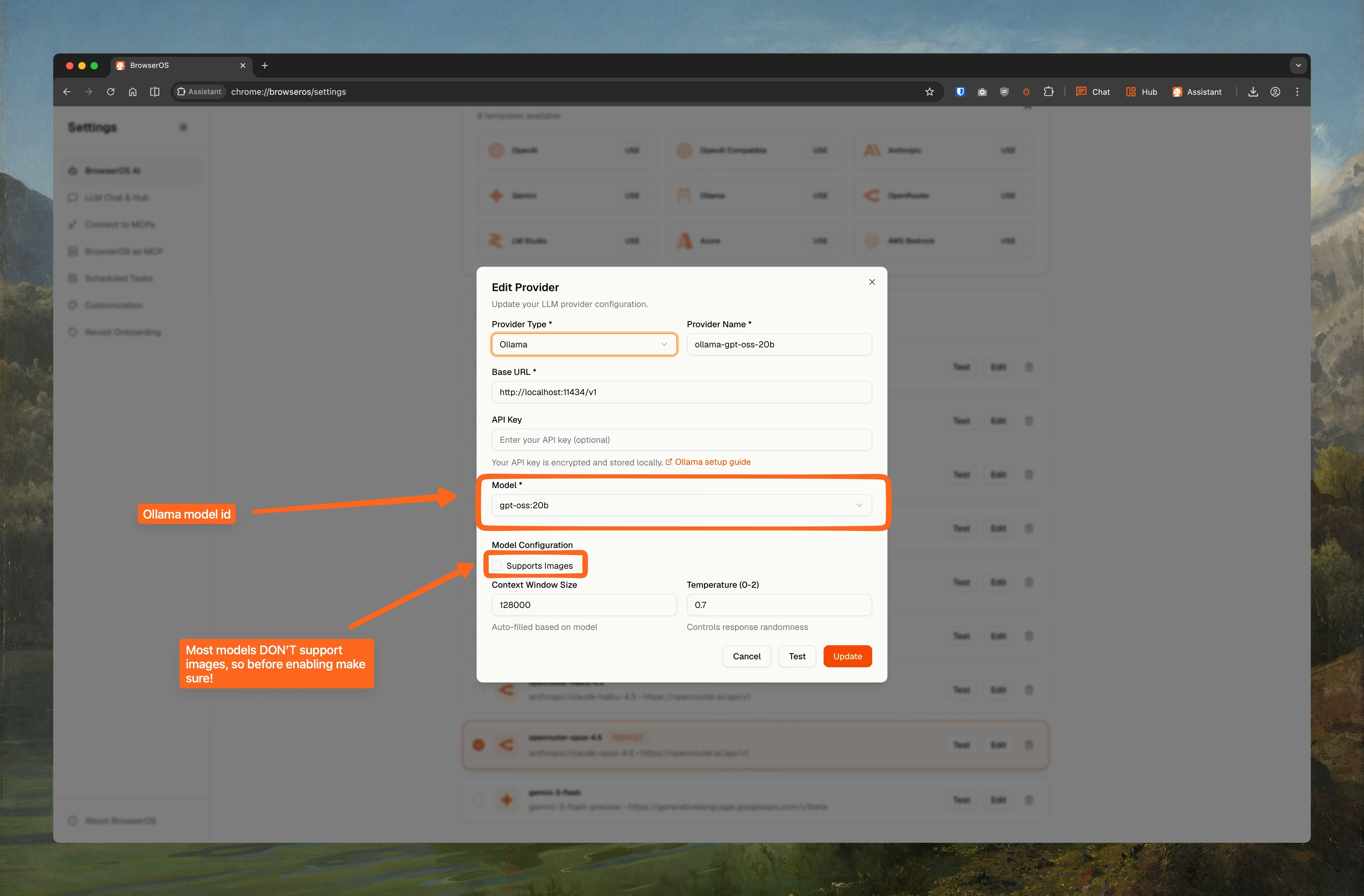
1. Go to `chrome://browseros/settings`
2. Click **USE** on the Ollama card
3. Set **Model ID** to `qwen/qwen3-4b`
4. Set **Context Window** to `20000`
5. Click **Save**
 Nice GUI if you don't want to use the terminal.
Download from [lmstudio.ai](https://lmstudio.ai) and install it.
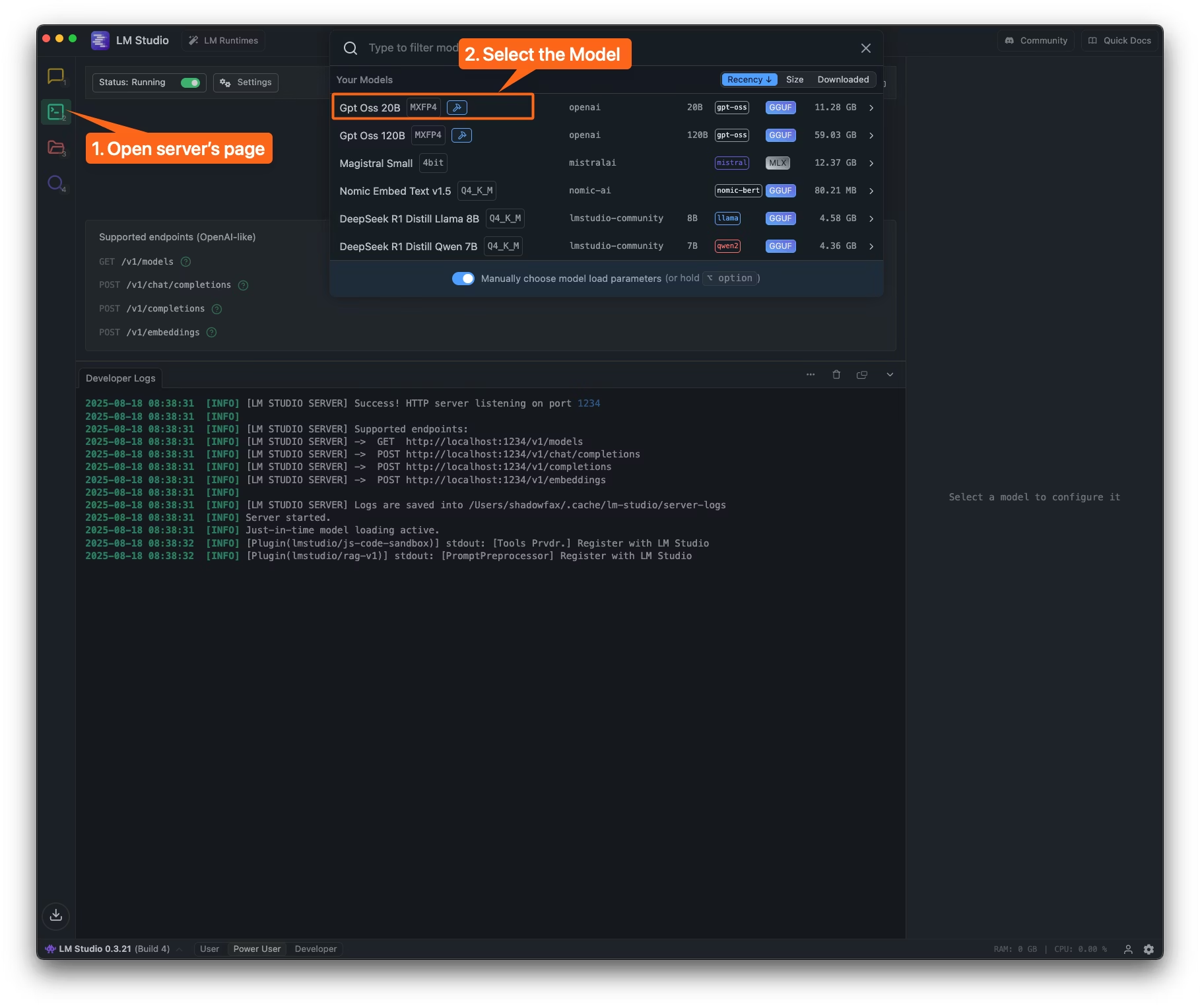
Open LM Studio → **Developer** tab → load a model. It runs a server at `http://localhost:1234/v1/`.
Nice GUI if you don't want to use the terminal.
Download from [lmstudio.ai](https://lmstudio.ai) and install it.
Open LM Studio → **Developer** tab → load a model. It runs a server at `http://localhost:1234/v1/`.
 1. Go to `chrome://browseros/settings`
2. Click **USE** on the **OpenAI Compatible** card
3. Set **Base URL** to `http://localhost:1234/v1/`
4. Set **Model ID** to the model you loaded
5. Set **Context Window** to at least `20000`
6. Click **Save**
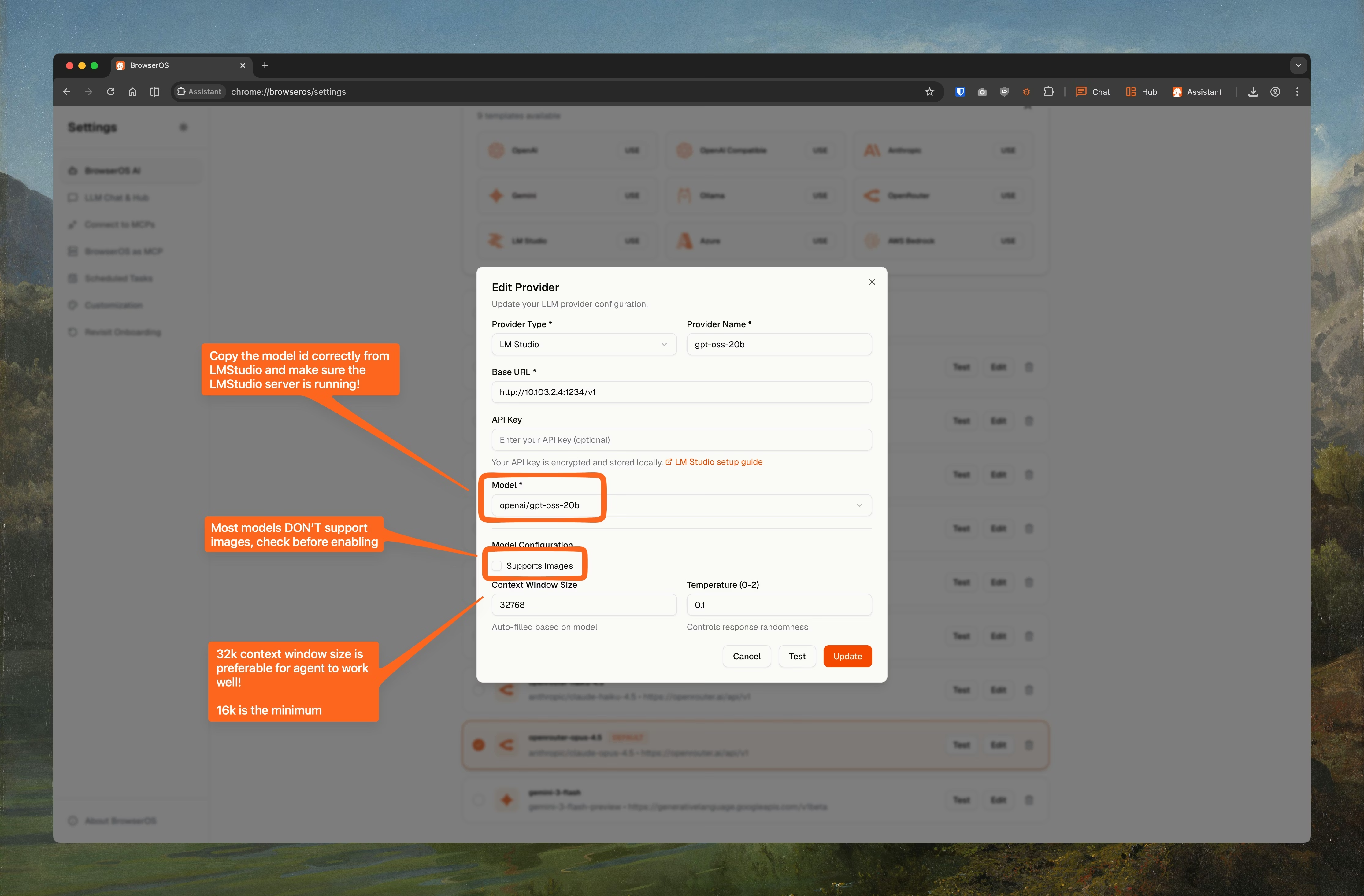
1. Go to `chrome://browseros/settings`
2. Click **USE** on the **OpenAI Compatible** card
3. Set **Base URL** to `http://localhost:1234/v1/`
4. Set **Model ID** to the model you loaded
5. Set **Context Window** to at least `20000`
6. Click **Save**
 ***
## Recommended Models
Pick a model based on your available RAM/VRAM. Smaller models are faster but less capable.
### Lightweight (under 5 GB)
Good for machines with 8 GB RAM. Fast responses, suitable for simple chat tasks.
| Model | Publisher | Params | Quant | Size |
| ------------------------------ | ------------------ | ------ | -------- | ------- |
| `qwen/qwen3-4b` | Qwen | 4B | 4bit | 2.28 GB |
| `mistralai/ministral-3-3b` | Mistral | 3B | Q4\_K\_M | 2.99 GB |
| `deepseek-r1-distill-qwen-7b` | lmstudio-community | 7B | Q4\_K\_M | 4.68 GB |
| `deepseek-r1-distill-llama-8b` | lmstudio-community | 8B | Q4\_K\_M | 4.92 GB |
### Mid-range (10–15 GB)
Needs 16+ GB RAM. Better reasoning, handles longer conversations well.
| Model | Publisher | Params | Quant | Size |
| --------------------------------- | --------- | ------ | ----- | -------- |
| `openai/gpt-oss-20b` | OpenAI | 20B | MXFP4 | 12.11 GB |
| `mistralai/magistral-small` | Mistral | 23.6B | 4bit | 13.28 GB |
| `mistralai/devstral-small-2-2512` | Mistral | 24B | 4bit | 14.12 GB |
### Heavy (60+ GB)
For workstations with 64+ GB RAM. Closest to cloud model quality.
| Model | Publisher | Params | Quant | Size |
| --------------------- | --------- | ------ | ----- | -------- |
| `openai/gpt-oss-120b` | OpenAI | 120B | MXFP4 | 63.39 GB |
Start with `qwen/qwen3-4b` if you're unsure — it's small, fast, and surprisingly capable for its size.
***
## Recommended Models
Pick a model based on your available RAM/VRAM. Smaller models are faster but less capable.
### Lightweight (under 5 GB)
Good for machines with 8 GB RAM. Fast responses, suitable for simple chat tasks.
| Model | Publisher | Params | Quant | Size |
| ------------------------------ | ------------------ | ------ | -------- | ------- |
| `qwen/qwen3-4b` | Qwen | 4B | 4bit | 2.28 GB |
| `mistralai/ministral-3-3b` | Mistral | 3B | Q4\_K\_M | 2.99 GB |
| `deepseek-r1-distill-qwen-7b` | lmstudio-community | 7B | Q4\_K\_M | 4.68 GB |
| `deepseek-r1-distill-llama-8b` | lmstudio-community | 8B | Q4\_K\_M | 4.92 GB |
### Mid-range (10–15 GB)
Needs 16+ GB RAM. Better reasoning, handles longer conversations well.
| Model | Publisher | Params | Quant | Size |
| --------------------------------- | --------- | ------ | ----- | -------- |
| `openai/gpt-oss-20b` | OpenAI | 20B | MXFP4 | 12.11 GB |
| `mistralai/magistral-small` | Mistral | 23.6B | 4bit | 13.28 GB |
| `mistralai/devstral-small-2-2512` | Mistral | 24B | 4bit | 14.12 GB |
### Heavy (60+ GB)
For workstations with 64+ GB RAM. Closest to cloud model quality.
| Model | Publisher | Params | Quant | Size |
| --------------------- | --------- | ------ | ----- | -------- |
| `openai/gpt-oss-120b` | OpenAI | 120B | MXFP4 | 63.39 GB |
Start with `qwen/qwen3-4b` if you're unsure — it's small, fast, and surprisingly capable for its size.