> ## Documentation Index
> Fetch the complete documentation index at: https://docs.browseros.com/llms.txt
> Use this file to discover all available pages before exploring further.
# MCP Clients (Claude Code, OpenClaw)
> Control your browser and 40+ apps from Claude Code, OpenClaw, Gemini CLI, or any MCP client
BrowserOS is the best browser for AI coding agents. It comes with a built-in MCP server that gives your AI agent **full browser control** and **direct access to 40+ external services** — Gmail, Slack, GitHub, Google Calendar, Linear, Notion, and more — all through a single MCP connection.
Unlike Chrome DevTools MCP which requires setting up debug profiles and running separate servers, BrowserOS MCP works out of the box. Just copy the URL from settings and connect.
## Why Use BrowserOS with Claude Code?
Claude tests your web app, reads console errors, and fixes the code — all in one loop.
Gmail, Slack, GitHub, Jira, Notion, Google Sheets, and more — accessible directly from your AI agent.
Extract your LinkedIn profile, tweets, or any authenticated page content.
Fill forms, navigate multi-step workflows, and automate repetitive browser tasks.
Full browser control: tabs, navigation, clicks, typing, screenshots, bookmarks, history, tab groups, and window management.
Connect external services via OAuth — credentials are managed securely, never stored in BrowserOS.
Wondering how BrowserOS MCP compares to Chrome DevTools MCP or other browser automation tools? See our [detailed feature comparison](/comparisons/chrome-devtools-mcp) covering 53 browser tools, 40+ app integrations, and why BrowserOS MCP gives developers more out of the box.
## Getting Started
Navigate to `chrome://browseros/mcp` or click **Settings** → **BrowserOS as MCP** in the sidebar.
Copy the Server URL shown on the page (e.g., `http://127.0.0.1:9239/mcp`).
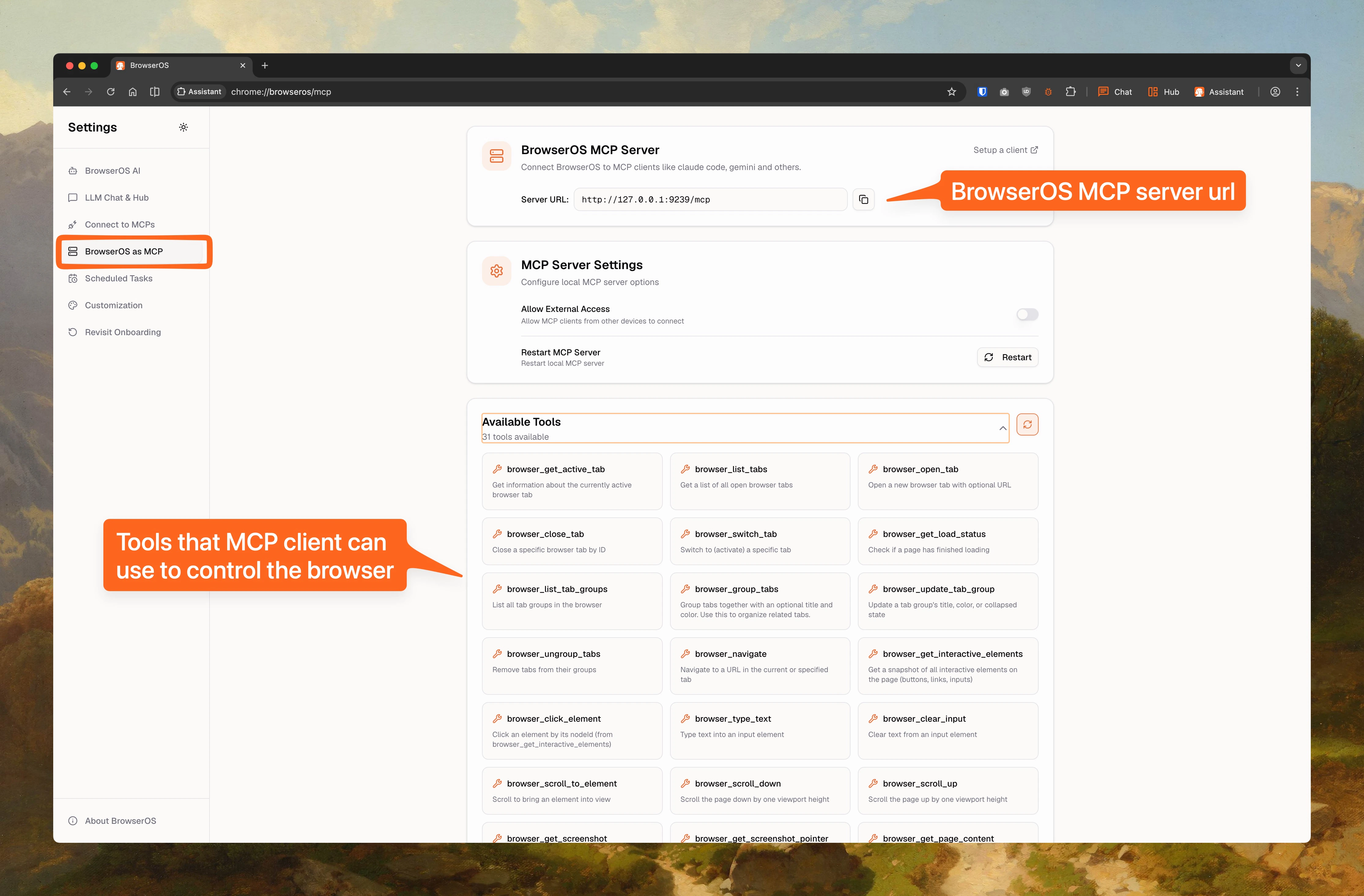 Use the tabs below to connect your preferred client.
Add BrowserOS to Claude Code:
```bash theme={null}
claude mcp add --transport http browseros --scope user
# Example: claude mcp add --transport http browseros http://127.0.0.1:9239/mcp --scope user
```
Start Claude Code and try it:
```bash theme={null}
claude
> Open amazon.com in BrowserOS
```
Run `claude --dangerously-skip-permissions` to skip confirmation prompts for each browser action.
To remove later:
```bash theme={null}
claude mcp remove browseros --scope user
```
Add BrowserOS to Gemini CLI:
```bash theme={null}
gemini mcp add local-server --transport http --scope user
# Example: gemini mcp add local-server http://127.0.0.1:9239/mcp --transport http --scope user
```
Add BrowserOS to OpenAI Codex CLI:
```bash theme={null}
codex mcp add browseros --transport http
# Example: codex mcp add browseros http://127.0.0.1:9239/mcp --transport http
```
Add BrowserOS to [OpenClaw](https://openclaw.ai/) by adding it to the `mcpServers` section in your `openclaw.json` config file:
```json theme={null}
{
"mcpServers": {
"browseros": {
"url": "http://127.0.0.1:9239/mcp"
}
}
}
```
Replace the URL with your BrowserOS MCP URL from settings.
Open your Claude Desktop config file:
```
~/Library/Application Support/Claude/claude_desktop_config.json
```
Add BrowserOS:
```json theme={null}
{
"mcpServers": {
"browseros": {
"command": "npx",
"args": ["mcp-remote", "http://127.0.0.1:9239/mcp"]
}
}
}
```
Do not add BrowserOS to `claude_desktop_config.json` as a raw `{ "url": "..." }` entry. Claude Desktop local config expects a command wrapper here, so use `npx mcp-remote `.
Restart Claude Desktop to connect.
## Example Prompts
Extract structured data from any page you're logged into — no scraping setup needed.
```
Open my LinkedIn profile in BrowserOS and extract my work experience as JSON
```
Test your web app end-to-end without leaving the terminal — Claude navigates, interacts, and reports errors back.
```
In BrowserOS, go to localhost:3000, click the login button, and check for console errors
```
Capture visual snapshots of any page for debugging, documentation, or design review.
```
Take a screenshot of the current page in BrowserOS and save it to screenshots/
```
Search through your real browsing history to find pages you visited earlier.
```
Search my BrowserOS history for "invoice" and list the recent matches
```
Access your email directly from the agent — read, search, and summarize without switching windows.
```
Read my latest Gmail messages and summarize them
```
Chain multiple services together in a single prompt — file issues, notify your team, and stay in flow.
```
Create a Linear issue for the bug I just found and post a summary to Slack
```
***
## Browser Automation Tools
BrowserOS exposes **53 browser automation tools** to MCP clients, organized into the following categories:
| Tool | Description |
| ----------------- | ----------------------------------------------------- |
| `get_active_page` | Get the currently focused page/tab |
| `list_pages` | List all open pages with title, URL, and tab ID |
| `navigate_page` | Navigate to a URL, or go back/forward/reload |
| `new_page` | Open a new tab (with optional background/hidden mode) |
| `new_hidden_page` | Open a hidden tab for background automation |
| `show_page` | Restore a hidden page to visible state |
| `move_page` | Move a tab to a different window or position |
| `close_page` | Close a tab |
| Tool | Description |
| ------------------------ | --------------------------------------------------------- |
| `take_snapshot` | Get accessibility tree with interactive element IDs |
| `take_enhanced_snapshot` | Detailed accessibility tree with structural context |
| `get_page_content` | Extract page as clean Markdown (headers, links, tables) |
| `get_page_links` | Extract all links from a page with deduplication |
| `get_dom` | Get raw HTML DOM with optional CSS selector scoping |
| `search_dom` | Search DOM by text, CSS selector, or XPath |
| `take_screenshot` | Capture page screenshot (PNG/JPEG/WebP, full-page option) |
| `evaluate_script` | Execute JavaScript in the page context |
| Tool | Description |
| --------------- | ---------------------------------------------------- |
| `click` | Click an element by ID from snapshot |
| `click_at` | Click at specific X,Y coordinates |
| `hover` | Hover over an element |
| `focus` | Focus an element (scrolls into view) |
| `fill` | Type text into an input (with optional clear) |
| `clear` | Clear text from input/textarea |
| `check` | Check a checkbox or radio button |
| `uncheck` | Uncheck a checkbox |
| `select_option` | Select a dropdown option by value or text |
| `press_key` | Press a key or key combination (Enter, Ctrl+A, etc.) |
| `drag` | Drag an element to another element or coordinates |
| `scroll` | Scroll page or element (up/down/left/right) |
| `upload_file` | Upload files to a file input element |
| `handle_dialog` | Accept or dismiss JavaScript dialogs |
| Tool | Description |
| ----------------- | -------------------------------------------------- |
| `save_pdf` | Print current page to a PDF file |
| `save_screenshot` | Capture and save a screenshot to disk |
| `download_file` | Click an element to trigger a download and save it |
| Tool | Description |
| ---------------------- | ------------------------------------------- |
| `list_windows` | List all browser windows |
| `create_window` | Create a new browser window |
| `create_hidden_window` | Create a hidden window for background tasks |
| `close_window` | Close a window by ID |
| `activate_window` | Focus and activate a window |
| Tool | Description |
| ------------------ | ------------------------------------------------ |
| `list_tab_groups` | List all tab groups |
| `group_tabs` | Create a tab group with optional title and color |
| `update_tab_group` | Update group title, color, or collapsed state |
| `ungroup_tabs` | Remove tabs from groups |
| `close_tab_group` | Close a group and all its tabs |
| Tool | Description |
| ------------------ | ------------------------------------- |
| `get_bookmarks` | List all bookmarks |
| `create_bookmark` | Create a bookmark or folder |
| `remove_bookmark` | Delete a bookmark or folder |
| `update_bookmark` | Update bookmark title or URL |
| `move_bookmark` | Move a bookmark to a different folder |
| `search_bookmarks` | Search bookmarks by title or URL |
| Tool | Description |
| ---------------------- | ------------------------------------ |
| `search_history` | Search browser history by text query |
| `get_recent_history` | Get the most recent history items |
| `delete_history_url` | Delete a specific URL from history |
| `delete_history_range` | Delete history within a time range |
***
## 40+ External App Integrations
BrowserOS connects your AI agent directly to the tools you already use — no separate MCP servers to install or configure. Everything is accessible through the same BrowserOS MCP connection.
### How It Works
Your AI agent calls a tool like `gmail_search_messages` through the BrowserOS MCP.
If this is your first time using that service, BrowserOS opens an OAuth login page in the browser. Log in and authorize access.
Once authenticated, the tool runs and returns results to your agent. Future calls to the same service work automatically — no re-authentication needed.
Your credentials are managed securely via OAuth and are **never stored in BrowserOS**. Tokens are refreshed transparently, and you can revoke access at any time from the service provider.
### Supported Services
| Service | What you can do |
| ---------------- | --------------------------------------------------- |
| **Gmail** | Send, read, search emails, manage drafts and labels |
| **Outlook Mail** | Send, read, and manage emails |
| **Resend** | Send transactional and marketing emails |
| Service | What you can do |
| -------------------- | ----------------------------------------------- |
| **Google Calendar** | Create events, find free time, manage calendars |
| **Outlook Calendar** | Schedule meetings, manage events |
| **Cal.com** | Schedule meetings, manage availability |
| Service | What you can do |
| ------------------- | ----------------------------------- |
| **Slack** | Post messages, manage channels |
| **Discord** | Send messages, manage servers |
| **WhatsApp** | Send messages, manage conversations |
| **Microsoft Teams** | Chat, meet, and collaborate |
| Service | What you can do |
| -------------- | ---------------------------------------- |
| **GitHub** | Manage repos, issues, and pull requests |
| **GitLab** | Manage repos, issues, and merge requests |
| **Vercel** | Deploy and manage web applications |
| **Postman** | Test and manage APIs |
| **Cloudflare** | Manage domains, DNS, and security |
| **Supabase** | Manage databases and backend services |
| Service | What you can do |
| ----------- | ----------------------------------------- |
| **Linear** | Create issues, manage cycles and projects |
| **Jira** | Create issues, manage sprints |
| **Asana** | Organize and track team projects |
| **Monday** | Manage work and team collaboration |
| **ClickUp** | Manage tasks, projects, and workflows |
| Service | What you can do |
| ----------------- | ----------------------------------- |
| **Notion** | Create pages, manage databases |
| **Google Docs** | Create and edit documents |
| **Google Sheets** | Create and edit spreadsheets |
| **Google Drive** | Upload, download, and manage files |
| **Google Forms** | Create and manage forms and surveys |
| **Confluence** | Create and manage documentation |
| **Airtable** | Manage bases, tables, and records |
| Service | What you can do |
| ------------ | ----------------------------------- |
| **Dropbox** | Store and share files |
| **OneDrive** | Store and sync files with Microsoft |
| **Box** | Manage and share enterprise files |
| Service | What you can do |
| --------- | ------------------------------ |
| **Figma** | Access and manage design files |
| **Canva** | Create and manage designs |
| Service | What you can do |
| -------------- | ----------------------------------------- |
| **Salesforce** | Manage leads, contacts, and opportunities |
| **HubSpot** | Manage contacts, deals, and marketing |
| Service | What you can do |
| ----------- | ---------------------------------- |
| **Shopify** | Manage products, orders, and store |
| **Stripe** | Manage payments and subscriptions |
| Service | What you can do |
| ------------ | ------------------------------------- |
| **PostHog** | Query analytics, manage feature flags |
| **Mixpanel** | Analyze user behavior and metrics |
| Service | What you can do |
| ------------ | ------------------------------------- |
| **Zendesk** | Manage support tickets and customers |
| **Intercom** | Manage customer messaging and support |
| Service | What you can do |
| ---------------- | ------------------------------ |
| **Brave Search** | Search the web privately |
| **Exa** | AI-powered semantic web search |
| **Mem0** | Store and retrieve AI memory |
| Service | What you can do |
| ------------- | --------------------------------- |
| **LinkedIn** | Post updates, manage connections |
| **YouTube** | Access video info and transcripts |
| **WordPress** | Manage websites and blog content |
***
## Demo Videos
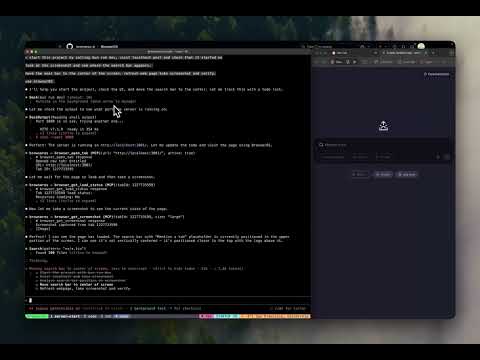
### Agentic coding workflow
[](https://youtu.be/vcSxzIIkg_0)
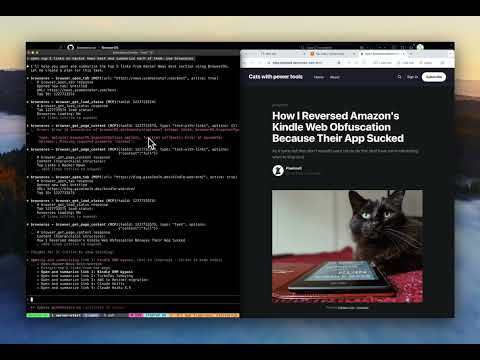
### Browser automation with Claude Code
[](https://youtu.be/rPFx_Btajj0)
Use the tabs below to connect your preferred client.
Add BrowserOS to Claude Code:
```bash theme={null}
claude mcp add --transport http browseros --scope user
# Example: claude mcp add --transport http browseros http://127.0.0.1:9239/mcp --scope user
```
Start Claude Code and try it:
```bash theme={null}
claude
> Open amazon.com in BrowserOS
```
Run `claude --dangerously-skip-permissions` to skip confirmation prompts for each browser action.
To remove later:
```bash theme={null}
claude mcp remove browseros --scope user
```
Add BrowserOS to Gemini CLI:
```bash theme={null}
gemini mcp add local-server --transport http --scope user
# Example: gemini mcp add local-server http://127.0.0.1:9239/mcp --transport http --scope user
```
Add BrowserOS to OpenAI Codex CLI:
```bash theme={null}
codex mcp add browseros --transport http
# Example: codex mcp add browseros http://127.0.0.1:9239/mcp --transport http
```
Add BrowserOS to [OpenClaw](https://openclaw.ai/) by adding it to the `mcpServers` section in your `openclaw.json` config file:
```json theme={null}
{
"mcpServers": {
"browseros": {
"url": "http://127.0.0.1:9239/mcp"
}
}
}
```
Replace the URL with your BrowserOS MCP URL from settings.
Open your Claude Desktop config file:
```
~/Library/Application Support/Claude/claude_desktop_config.json
```
Add BrowserOS:
```json theme={null}
{
"mcpServers": {
"browseros": {
"command": "npx",
"args": ["mcp-remote", "http://127.0.0.1:9239/mcp"]
}
}
}
```
Do not add BrowserOS to `claude_desktop_config.json` as a raw `{ "url": "..." }` entry. Claude Desktop local config expects a command wrapper here, so use `npx mcp-remote `.
Restart Claude Desktop to connect.
## Example Prompts
Extract structured data from any page you're logged into — no scraping setup needed.
```
Open my LinkedIn profile in BrowserOS and extract my work experience as JSON
```
Test your web app end-to-end without leaving the terminal — Claude navigates, interacts, and reports errors back.
```
In BrowserOS, go to localhost:3000, click the login button, and check for console errors
```
Capture visual snapshots of any page for debugging, documentation, or design review.
```
Take a screenshot of the current page in BrowserOS and save it to screenshots/
```
Search through your real browsing history to find pages you visited earlier.
```
Search my BrowserOS history for "invoice" and list the recent matches
```
Access your email directly from the agent — read, search, and summarize without switching windows.
```
Read my latest Gmail messages and summarize them
```
Chain multiple services together in a single prompt — file issues, notify your team, and stay in flow.
```
Create a Linear issue for the bug I just found and post a summary to Slack
```
***
## Browser Automation Tools
BrowserOS exposes **53 browser automation tools** to MCP clients, organized into the following categories:
| Tool | Description |
| ----------------- | ----------------------------------------------------- |
| `get_active_page` | Get the currently focused page/tab |
| `list_pages` | List all open pages with title, URL, and tab ID |
| `navigate_page` | Navigate to a URL, or go back/forward/reload |
| `new_page` | Open a new tab (with optional background/hidden mode) |
| `new_hidden_page` | Open a hidden tab for background automation |
| `show_page` | Restore a hidden page to visible state |
| `move_page` | Move a tab to a different window or position |
| `close_page` | Close a tab |
| Tool | Description |
| ------------------------ | --------------------------------------------------------- |
| `take_snapshot` | Get accessibility tree with interactive element IDs |
| `take_enhanced_snapshot` | Detailed accessibility tree with structural context |
| `get_page_content` | Extract page as clean Markdown (headers, links, tables) |
| `get_page_links` | Extract all links from a page with deduplication |
| `get_dom` | Get raw HTML DOM with optional CSS selector scoping |
| `search_dom` | Search DOM by text, CSS selector, or XPath |
| `take_screenshot` | Capture page screenshot (PNG/JPEG/WebP, full-page option) |
| `evaluate_script` | Execute JavaScript in the page context |
| Tool | Description |
| --------------- | ---------------------------------------------------- |
| `click` | Click an element by ID from snapshot |
| `click_at` | Click at specific X,Y coordinates |
| `hover` | Hover over an element |
| `focus` | Focus an element (scrolls into view) |
| `fill` | Type text into an input (with optional clear) |
| `clear` | Clear text from input/textarea |
| `check` | Check a checkbox or radio button |
| `uncheck` | Uncheck a checkbox |
| `select_option` | Select a dropdown option by value or text |
| `press_key` | Press a key or key combination (Enter, Ctrl+A, etc.) |
| `drag` | Drag an element to another element or coordinates |
| `scroll` | Scroll page or element (up/down/left/right) |
| `upload_file` | Upload files to a file input element |
| `handle_dialog` | Accept or dismiss JavaScript dialogs |
| Tool | Description |
| ----------------- | -------------------------------------------------- |
| `save_pdf` | Print current page to a PDF file |
| `save_screenshot` | Capture and save a screenshot to disk |
| `download_file` | Click an element to trigger a download and save it |
| Tool | Description |
| ---------------------- | ------------------------------------------- |
| `list_windows` | List all browser windows |
| `create_window` | Create a new browser window |
| `create_hidden_window` | Create a hidden window for background tasks |
| `close_window` | Close a window by ID |
| `activate_window` | Focus and activate a window |
| Tool | Description |
| ------------------ | ------------------------------------------------ |
| `list_tab_groups` | List all tab groups |
| `group_tabs` | Create a tab group with optional title and color |
| `update_tab_group` | Update group title, color, or collapsed state |
| `ungroup_tabs` | Remove tabs from groups |
| `close_tab_group` | Close a group and all its tabs |
| Tool | Description |
| ------------------ | ------------------------------------- |
| `get_bookmarks` | List all bookmarks |
| `create_bookmark` | Create a bookmark or folder |
| `remove_bookmark` | Delete a bookmark or folder |
| `update_bookmark` | Update bookmark title or URL |
| `move_bookmark` | Move a bookmark to a different folder |
| `search_bookmarks` | Search bookmarks by title or URL |
| Tool | Description |
| ---------------------- | ------------------------------------ |
| `search_history` | Search browser history by text query |
| `get_recent_history` | Get the most recent history items |
| `delete_history_url` | Delete a specific URL from history |
| `delete_history_range` | Delete history within a time range |
***
## 40+ External App Integrations
BrowserOS connects your AI agent directly to the tools you already use — no separate MCP servers to install or configure. Everything is accessible through the same BrowserOS MCP connection.
### How It Works
Your AI agent calls a tool like `gmail_search_messages` through the BrowserOS MCP.
If this is your first time using that service, BrowserOS opens an OAuth login page in the browser. Log in and authorize access.
Once authenticated, the tool runs and returns results to your agent. Future calls to the same service work automatically — no re-authentication needed.
Your credentials are managed securely via OAuth and are **never stored in BrowserOS**. Tokens are refreshed transparently, and you can revoke access at any time from the service provider.
### Supported Services
| Service | What you can do |
| ---------------- | --------------------------------------------------- |
| **Gmail** | Send, read, search emails, manage drafts and labels |
| **Outlook Mail** | Send, read, and manage emails |
| **Resend** | Send transactional and marketing emails |
| Service | What you can do |
| -------------------- | ----------------------------------------------- |
| **Google Calendar** | Create events, find free time, manage calendars |
| **Outlook Calendar** | Schedule meetings, manage events |
| **Cal.com** | Schedule meetings, manage availability |
| Service | What you can do |
| ------------------- | ----------------------------------- |
| **Slack** | Post messages, manage channels |
| **Discord** | Send messages, manage servers |
| **WhatsApp** | Send messages, manage conversations |
| **Microsoft Teams** | Chat, meet, and collaborate |
| Service | What you can do |
| -------------- | ---------------------------------------- |
| **GitHub** | Manage repos, issues, and pull requests |
| **GitLab** | Manage repos, issues, and merge requests |
| **Vercel** | Deploy and manage web applications |
| **Postman** | Test and manage APIs |
| **Cloudflare** | Manage domains, DNS, and security |
| **Supabase** | Manage databases and backend services |
| Service | What you can do |
| ----------- | ----------------------------------------- |
| **Linear** | Create issues, manage cycles and projects |
| **Jira** | Create issues, manage sprints |
| **Asana** | Organize and track team projects |
| **Monday** | Manage work and team collaboration |
| **ClickUp** | Manage tasks, projects, and workflows |
| Service | What you can do |
| ----------------- | ----------------------------------- |
| **Notion** | Create pages, manage databases |
| **Google Docs** | Create and edit documents |
| **Google Sheets** | Create and edit spreadsheets |
| **Google Drive** | Upload, download, and manage files |
| **Google Forms** | Create and manage forms and surveys |
| **Confluence** | Create and manage documentation |
| **Airtable** | Manage bases, tables, and records |
| Service | What you can do |
| ------------ | ----------------------------------- |
| **Dropbox** | Store and share files |
| **OneDrive** | Store and sync files with Microsoft |
| **Box** | Manage and share enterprise files |
| Service | What you can do |
| --------- | ------------------------------ |
| **Figma** | Access and manage design files |
| **Canva** | Create and manage designs |
| Service | What you can do |
| -------------- | ----------------------------------------- |
| **Salesforce** | Manage leads, contacts, and opportunities |
| **HubSpot** | Manage contacts, deals, and marketing |
| Service | What you can do |
| ----------- | ---------------------------------- |
| **Shopify** | Manage products, orders, and store |
| **Stripe** | Manage payments and subscriptions |
| Service | What you can do |
| ------------ | ------------------------------------- |
| **PostHog** | Query analytics, manage feature flags |
| **Mixpanel** | Analyze user behavior and metrics |
| Service | What you can do |
| ------------ | ------------------------------------- |
| **Zendesk** | Manage support tickets and customers |
| **Intercom** | Manage customer messaging and support |
| Service | What you can do |
| ---------------- | ------------------------------ |
| **Brave Search** | Search the web privately |
| **Exa** | AI-powered semantic web search |
| **Mem0** | Store and retrieve AI memory |
| Service | What you can do |
| ------------- | --------------------------------- |
| **LinkedIn** | Post updates, manage connections |
| **YouTube** | Access video info and transcripts |
| **WordPress** | Manage websites and blog content |
***
## Demo Videos
### Agentic coding workflow
[](https://youtu.be/vcSxzIIkg_0)
### Browser automation with Claude Code
[](https://youtu.be/rPFx_Btajj0)