> ## Documentation Index
> Fetch the complete documentation index at: https://docs.browseros.com/llms.txt
> Use this file to discover all available pages before exploring further.
# Vertical Tabs
> Move your tabs to the side for a cleaner, more organized browsing experience
BrowserOS supports vertical tabs — a side panel that lists all your open tabs along the left edge of the browser window. Instead of shrinking tab titles into a cramped horizontal strip, vertical tabs give each tab its own full-width row so you can read titles at a glance, even with dozens of tabs open.
## Why Vertical Tabs?
Modern screens are wide, not tall. A horizontal tab bar wastes vertical space you could use for content, and tabs quickly become unreadable as they shrink. Vertical tabs solve both problems:
Tabs stack vertically with full-width labels, so you always know what is open — no squinting at favicons.
Open 30, 50, or 100 tabs without the strip becoming unusable. The side panel scrolls naturally.
The horizontal tab bar disappears, giving web pages more room on widescreen monitors.
Combine vertical tabs with tab groups to visually separate work, research, and personal browsing.
## Enabling Vertical Tabs
Toggle vertical tabs on or off from the Customization settings page.
Go to `chrome://browseros/settings` in the address bar.
In the left sidebar, select **Customization**.
Flip the **Use Vertical Tabs** switch to on. The browser immediately moves your tabs to a side panel.
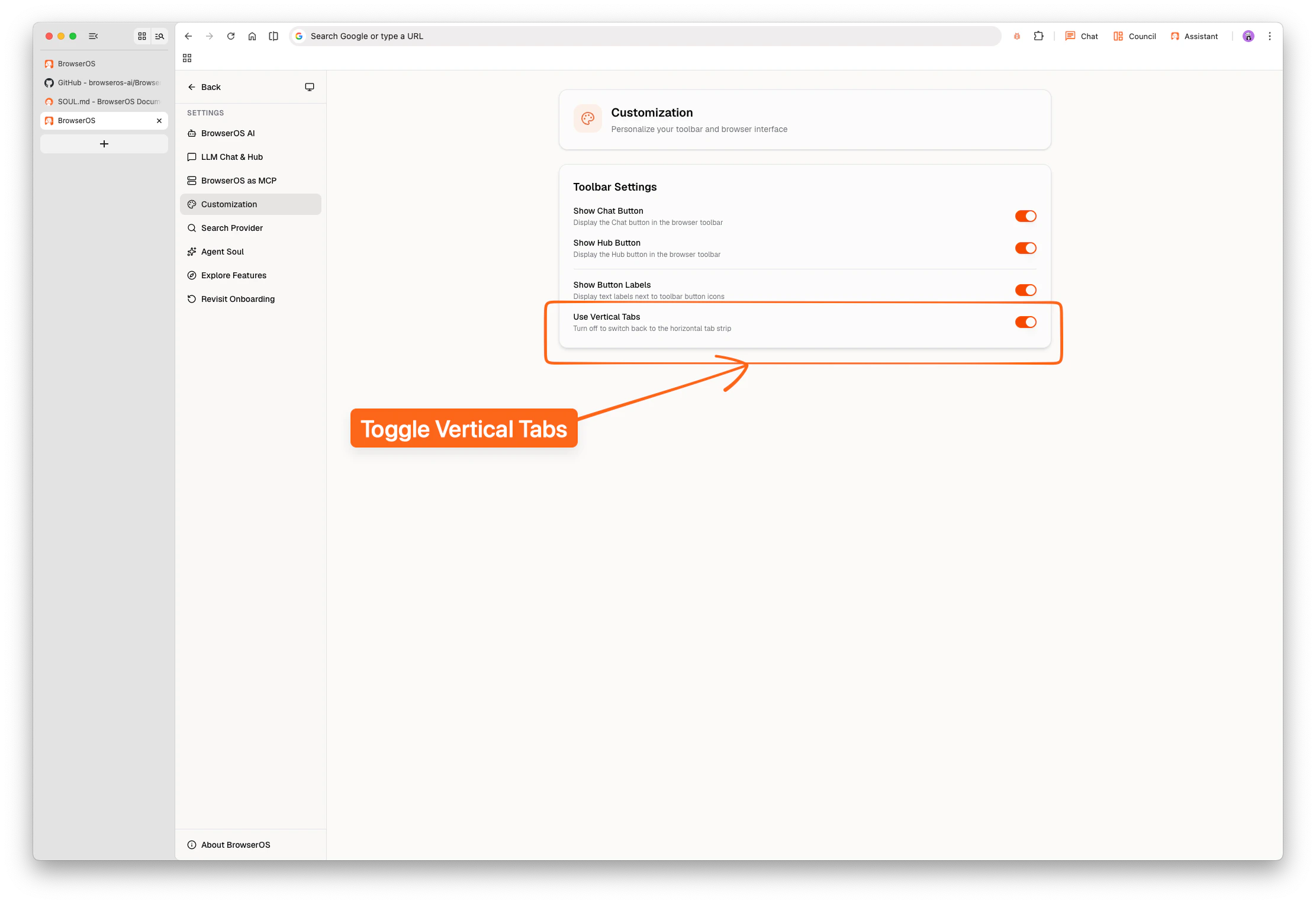 To switch back, return to the same setting and turn the toggle off. Your tabs move back to the horizontal strip instantly.
## How It Works
When vertical tabs are enabled, the tab strip relocates from the top of the window to a collapsible side panel on the left. Each tab is displayed as a row showing the page favicon and full title.
* **Click** a tab row to switch to it.
* **Right-click** a tab for the standard context menu (pin, mute, close, move to group).
* **Drag** tabs up or down to reorder them, or drag them into and out of tab groups.
* The panel can be **collapsed** to show only favicons, freeing up even more horizontal space.
## Vertical Tabs + Tab Groups
Vertical tabs pair naturally with tab groups. Groups appear as collapsible sections in the side panel, making it easy to keep projects separate and fold away tabs you are not actively using.
To switch back, return to the same setting and turn the toggle off. Your tabs move back to the horizontal strip instantly.
## How It Works
When vertical tabs are enabled, the tab strip relocates from the top of the window to a collapsible side panel on the left. Each tab is displayed as a row showing the page favicon and full title.
* **Click** a tab row to switch to it.
* **Right-click** a tab for the standard context menu (pin, mute, close, move to group).
* **Drag** tabs up or down to reorder them, or drag them into and out of tab groups.
* The panel can be **collapsed** to show only favicons, freeing up even more horizontal space.
## Vertical Tabs + Tab Groups
Vertical tabs pair naturally with tab groups. Groups appear as collapsible sections in the side panel, making it easy to keep projects separate and fold away tabs you are not actively using.