> ## Documentation Index
> Fetch the complete documentation index at: https://docs.browseros.com/llms.txt
> Use this file to discover all available pages before exploring further.
# n8n Integration
> Build AI workflows that control your browser
Connect BrowserOS to n8n to build automated workflows. Your n8n AI agents can control the browser—open pages, click buttons, extract data, and fill forms.
## What You Can Build
* **Lead enrichment** — Pull a list of LinkedIn URLs from a spreadsheet and scrape each profile
* **Price monitoring** — Check product prices hourly and send a Slack alert when they drop
* **Form automation** — Auto-fill job applications using data from your CRM
* **Data extraction** — Scrape authenticated pages that require login
## Prerequisites
Before you start:
* BrowserOS running with MCP server enabled (Settings → BrowserOS as MCP)
* n8n running locally (`npx n8n` or install globally with `npm install -g n8n`)
## Setup
### 1. Install the MCP community node
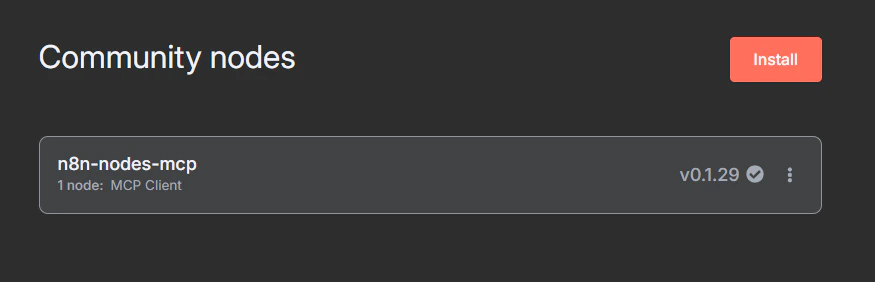
In n8n, go to **Settings → Community Nodes** and install `n8n-nodes-mcp`:
 ### 2. Create a workflow
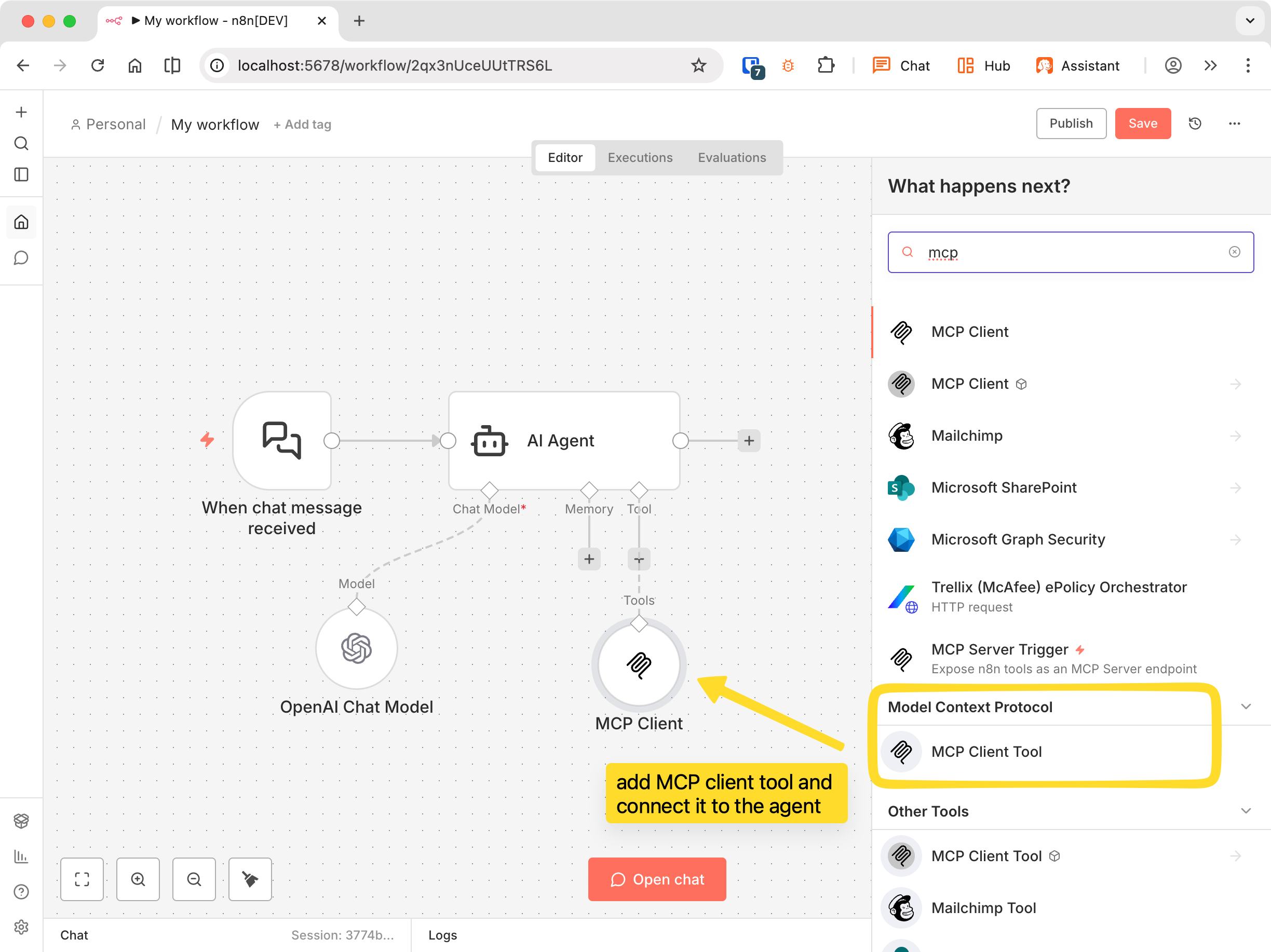
Build a workflow with these nodes:
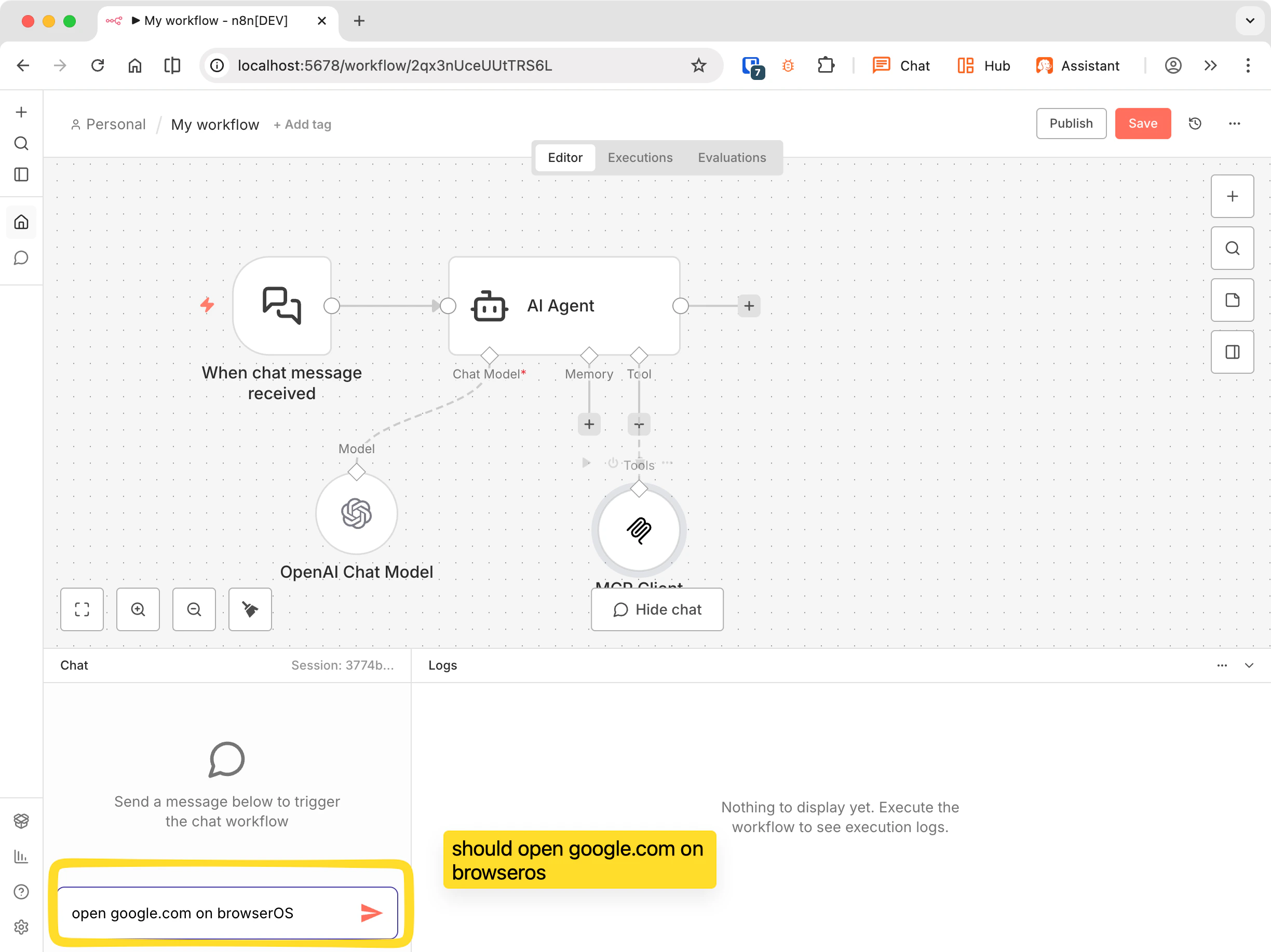
1. Add a **Chat Trigger** node (receives your messages)
2. Add an **AI Agent** node and connect it to the trigger
3. Add a **Chat Model** under the AI Agent (e.g., OpenAI, Claude)
4. Add an **MCP Client Tool** under the AI Agent
### 2. Create a workflow
Build a workflow with these nodes:
1. Add a **Chat Trigger** node (receives your messages)
2. Add an **AI Agent** node and connect it to the trigger
3. Add a **Chat Model** under the AI Agent (e.g., OpenAI, Claude)
4. Add an **MCP Client Tool** under the AI Agent
 ### 3. Configure the AI Agent
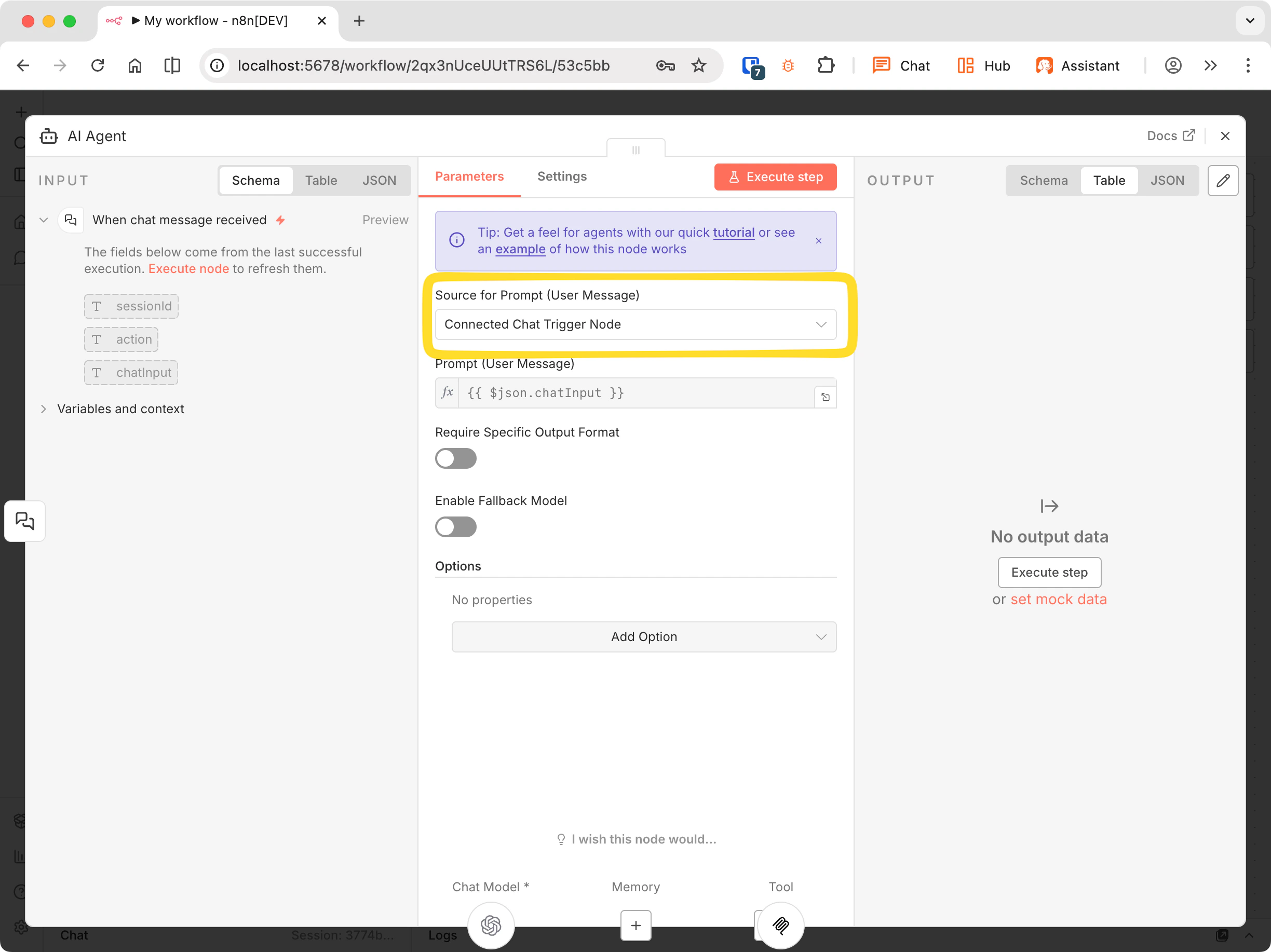
In the AI Agent node, set **Source for Prompt** to **Connected Chat Trigger Node**.
### 3. Configure the AI Agent
In the AI Agent node, set **Source for Prompt** to **Connected Chat Trigger Node**.
 ### 4. Connect to BrowserOS
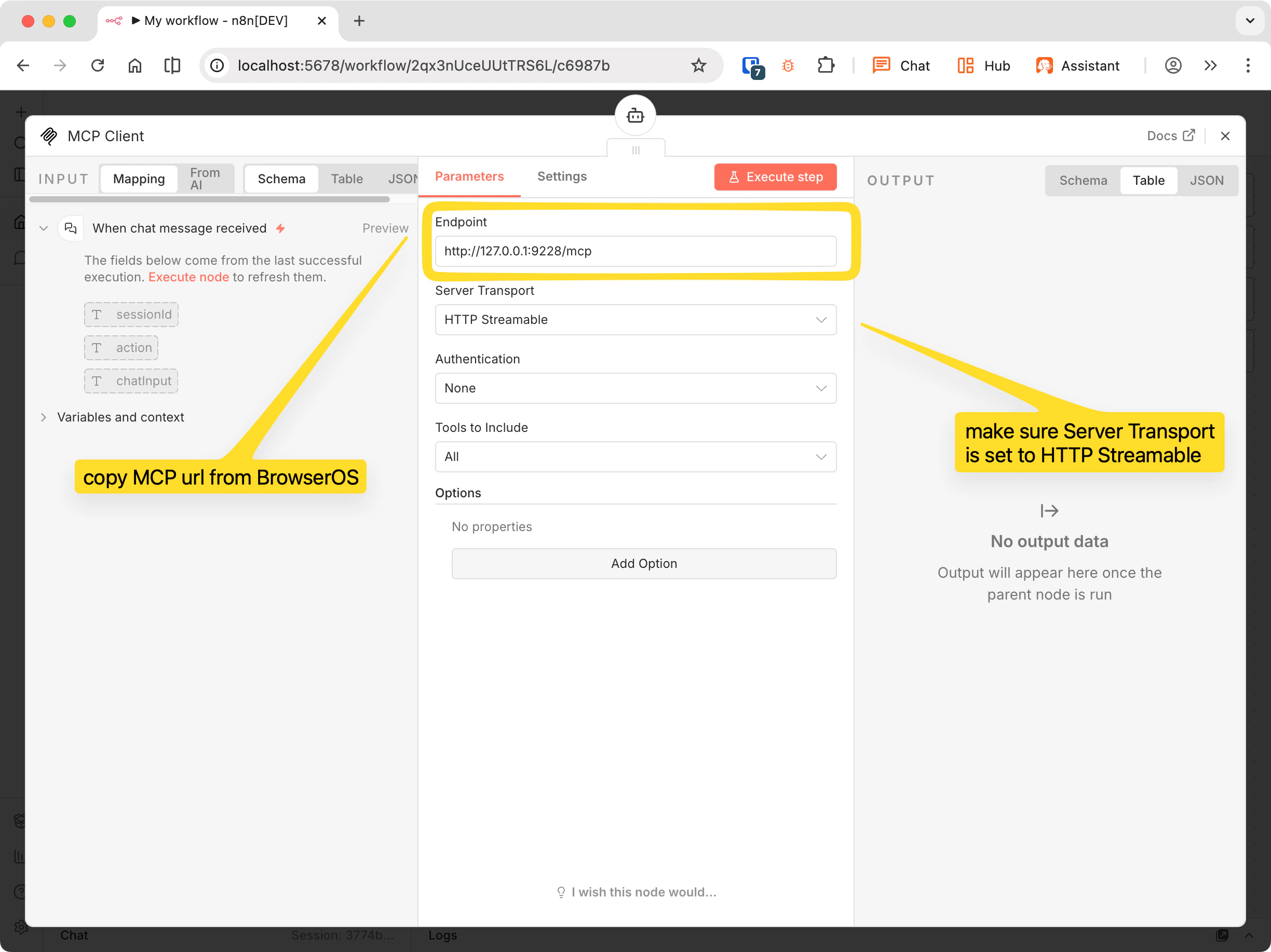
Click on the MCP Client node and configure:
* **Endpoint**: Your BrowserOS MCP URL (find it in Settings → BrowserOS as MCP)
* **Server Transport**: `HTTP Streamable`
### 4. Connect to BrowserOS
Click on the MCP Client node and configure:
* **Endpoint**: Your BrowserOS MCP URL (find it in Settings → BrowserOS as MCP)
* **Server Transport**: `HTTP Streamable`
 ### 5. Test it
Save the workflow, click **Open chat**, and try:
```
open google.com in BrowserOS
```
### 5. Test it
Save the workflow, click **Open chat**, and try:
```
open google.com in BrowserOS
```
 ## Troubleshooting
If the connection fails:
* Make sure BrowserOS is running
* Check that MCP server is enabled in BrowserOS settings
* Verify the port number matches your BrowserOS MCP URL
## Troubleshooting
If the connection fails:
* Make sure BrowserOS is running
* Check that MCP server is enabled in BrowserOS settings
* Verify the port number matches your BrowserOS MCP URL