> ## Documentation Index
> Fetch the complete documentation index at: https://docs.browseros.com/llms.txt
> Use this file to discover all available pages before exploring further.
# Audit and replay
> Every agent step is on your disk. Search, click through, and replay any session like a video. Nothing leaves your machine.
BrowserOS neo records everything your AI does in the browser so you can go back and see exactly what happened. All of it lives on your computer. Nothing goes to any server we control.
## The audit trail
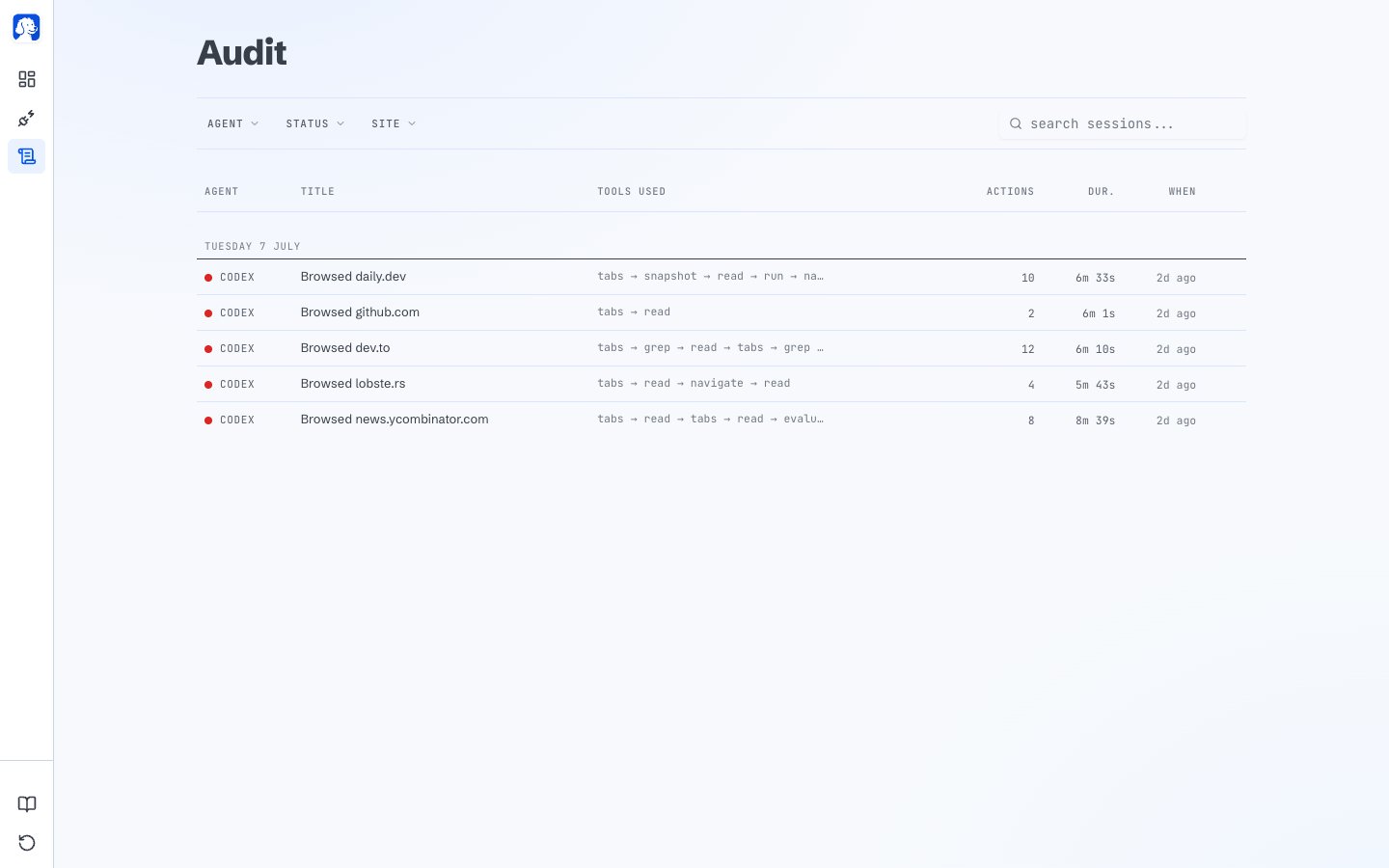
Every session your AI runs shows up on the audit page. Search across all of them, filter by agent, status, or site, and click any row to open its full story.
 Sessions land in one of three states:
* **Live**: the AI is still working.
* **Done**: it finished cleanly.
* **Failed**: something errored during the run.
## What each session shows you
Click any session and you get its full story: agent, timestamps, and every step the AI took, in order.
Sessions land in one of three states:
* **Live**: the AI is still working.
* **Done**: it finished cleanly.
* **Failed**: something errored during the run.
## What each session shows you
Click any session and you get its full story: agent, timestamps, and every step the AI took, in order.
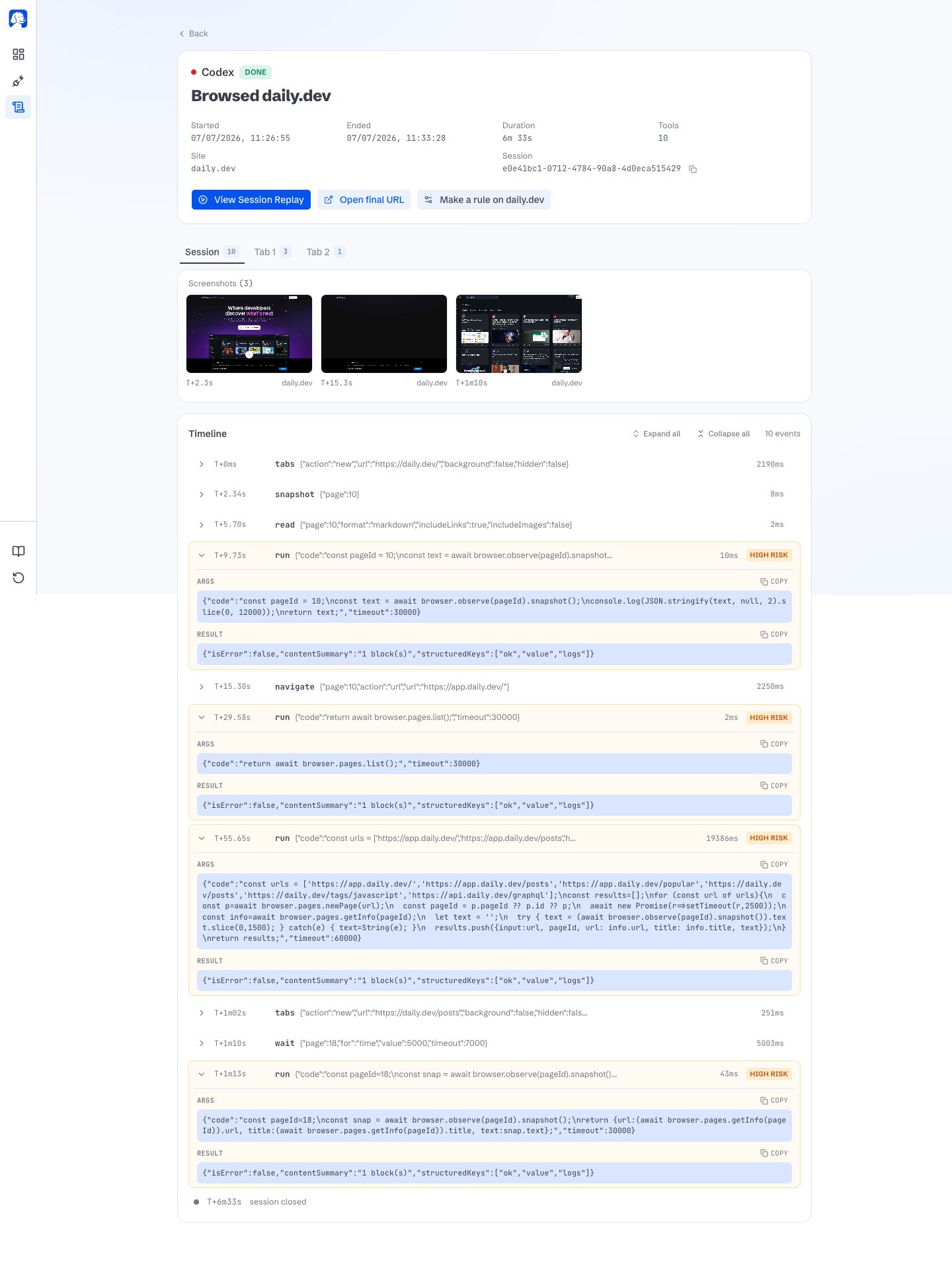 If the session used more than one tab, a tab strip lets you jump between them. Each tab has its own timeline of actions. Most steps include a screenshot of what the AI was looking at when it ran. Click one to open it full-size.
Sessions also carry a **View Session Replay** button that unlocks as soon as replay data lands.
## Replay like a video
Click **View Session Replay** to watch the whole session play back. The replay is the actual page the AI saw, not just a screenshot: DOM changes, scrolls, clicks, everything as it happened.
If the session used more than one tab, a tab strip lets you jump between them. Each tab has its own timeline of actions. Most steps include a screenshot of what the AI was looking at when it ran. Click one to open it full-size.
Sessions also carry a **View Session Replay** button that unlocks as soon as replay data lands.
## Replay like a video
Click **View Session Replay** to watch the whole session play back. The replay is the actual page the AI saw, not just a screenshot: DOM changes, scrolls, clicks, everything as it happened.
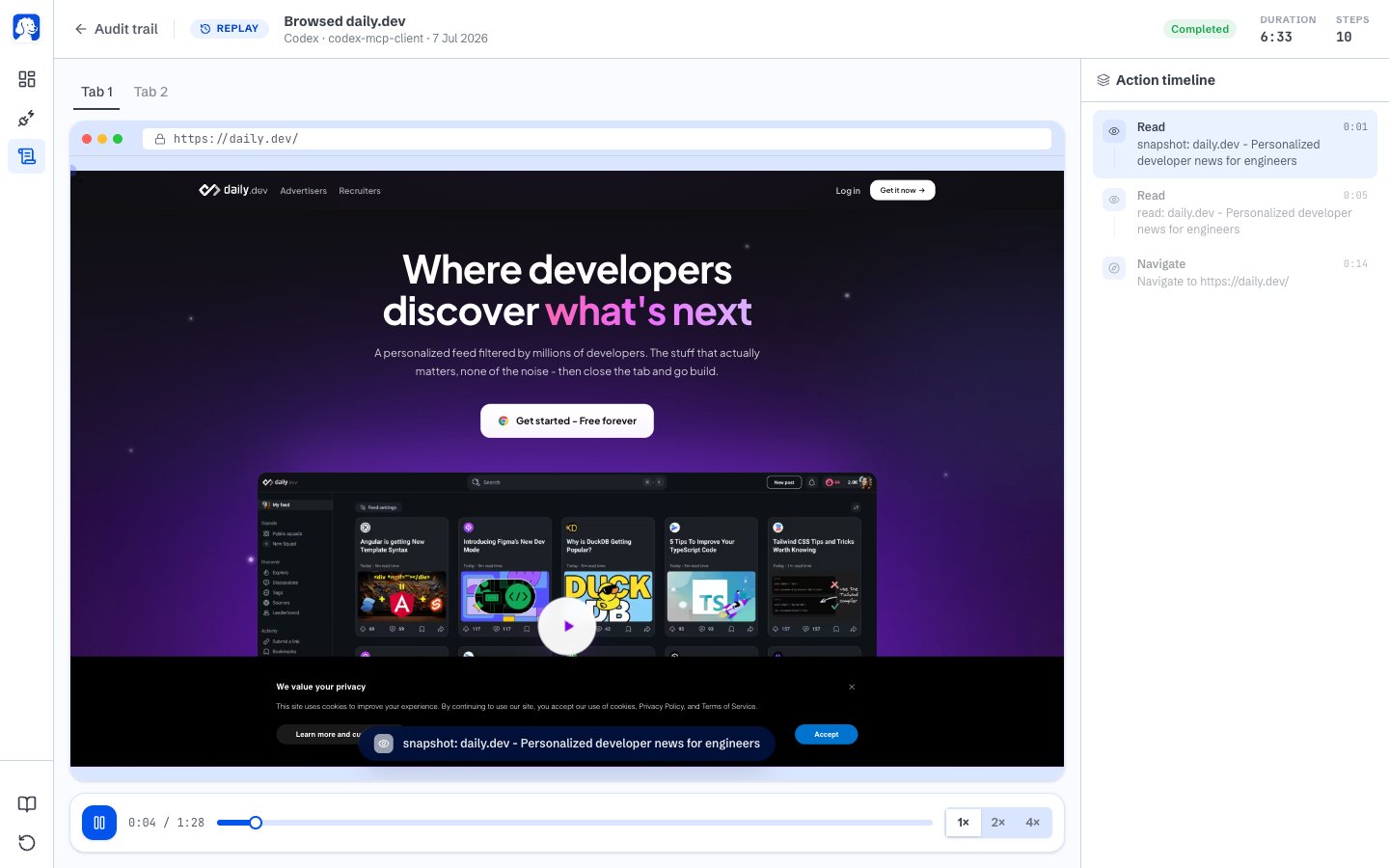 Use the scrubber to jump to any moment. Click any step on the right timeline to skip the replay straight to that action. If the session touched multiple tabs, switch between them at the top; each tab is its own recording with its own time origin.
## Where all of this lives
Everything you see on these pages sits in one folder on your computer: **`~/.browserclaw/`** in your home directory.
* `~/.browserclaw/browserclaw.sqlite` is the shared database for audit history, tasks, sessions, recording indexes, tab claims, and tab ownership.
* `~/.browserclaw/screenshots/` is a JPEG per screenshotted step.
* `~/.browserclaw/replays/` is the recording data per session.
That folder is spelled `.browserclaw`, not `.neo`. It keeps the product's old name so the rename doesn't orphan the history you already have. Type it exactly as written above.
The BrowserOS neo server that reads and writes these files only accepts requests from your own machine. It binds `127.0.0.1`, the local loopback, so nothing on your network can reach it. No account. No telemetry. No cloud sync.
If you want to delete a session or wipe everything, delete the files. That's it.
## What isn't recorded
* **Your personal tabs.** The recorder is only loaded into tabs your AI opened. Tabs you opened for your own work never get it. This isn't a policy on top of a general recorder; the recorder script is never even loaded there.
* **Passwords.** Any input marked as a password field is masked before it hits the recording.
* **Canvas and mouse jitter.** Canvas contents are not recorded. Cursor movements are not recorded either.
If you want the full picture, keep reading:
The full breakdown of what stays on your machine.
A guided walkthrough from install to your first AI-driven session.
Use the scrubber to jump to any moment. Click any step on the right timeline to skip the replay straight to that action. If the session touched multiple tabs, switch between them at the top; each tab is its own recording with its own time origin.
## Where all of this lives
Everything you see on these pages sits in one folder on your computer: **`~/.browserclaw/`** in your home directory.
* `~/.browserclaw/browserclaw.sqlite` is the shared database for audit history, tasks, sessions, recording indexes, tab claims, and tab ownership.
* `~/.browserclaw/screenshots/` is a JPEG per screenshotted step.
* `~/.browserclaw/replays/` is the recording data per session.
That folder is spelled `.browserclaw`, not `.neo`. It keeps the product's old name so the rename doesn't orphan the history you already have. Type it exactly as written above.
The BrowserOS neo server that reads and writes these files only accepts requests from your own machine. It binds `127.0.0.1`, the local loopback, so nothing on your network can reach it. No account. No telemetry. No cloud sync.
If you want to delete a session or wipe everything, delete the files. That's it.
## What isn't recorded
* **Your personal tabs.** The recorder is only loaded into tabs your AI opened. Tabs you opened for your own work never get it. This isn't a policy on top of a general recorder; the recorder script is never even loaded there.
* **Passwords.** Any input marked as a password field is masked before it hits the recording.
* **Canvas and mouse jitter.** Canvas contents are not recorded. Cursor movements are not recorded either.
If you want the full picture, keep reading:
The full breakdown of what stays on your machine.
A guided walkthrough from install to your first AI-driven session.