> ## Documentation Index
> Fetch the complete documentation index at: https://docs.browseros.com/llms.txt
> Use this file to discover all available pages before exploring further.
# Has Agent Crashed?
> How to fix connection issues when the BrowserOS agent is not responding
If you see **"Failed to Fetch"** or **"Unable to connect to BrowserOS agent"**, your agent has been killed.
 ## Windows: Did you allow the BrowserOS Agent?
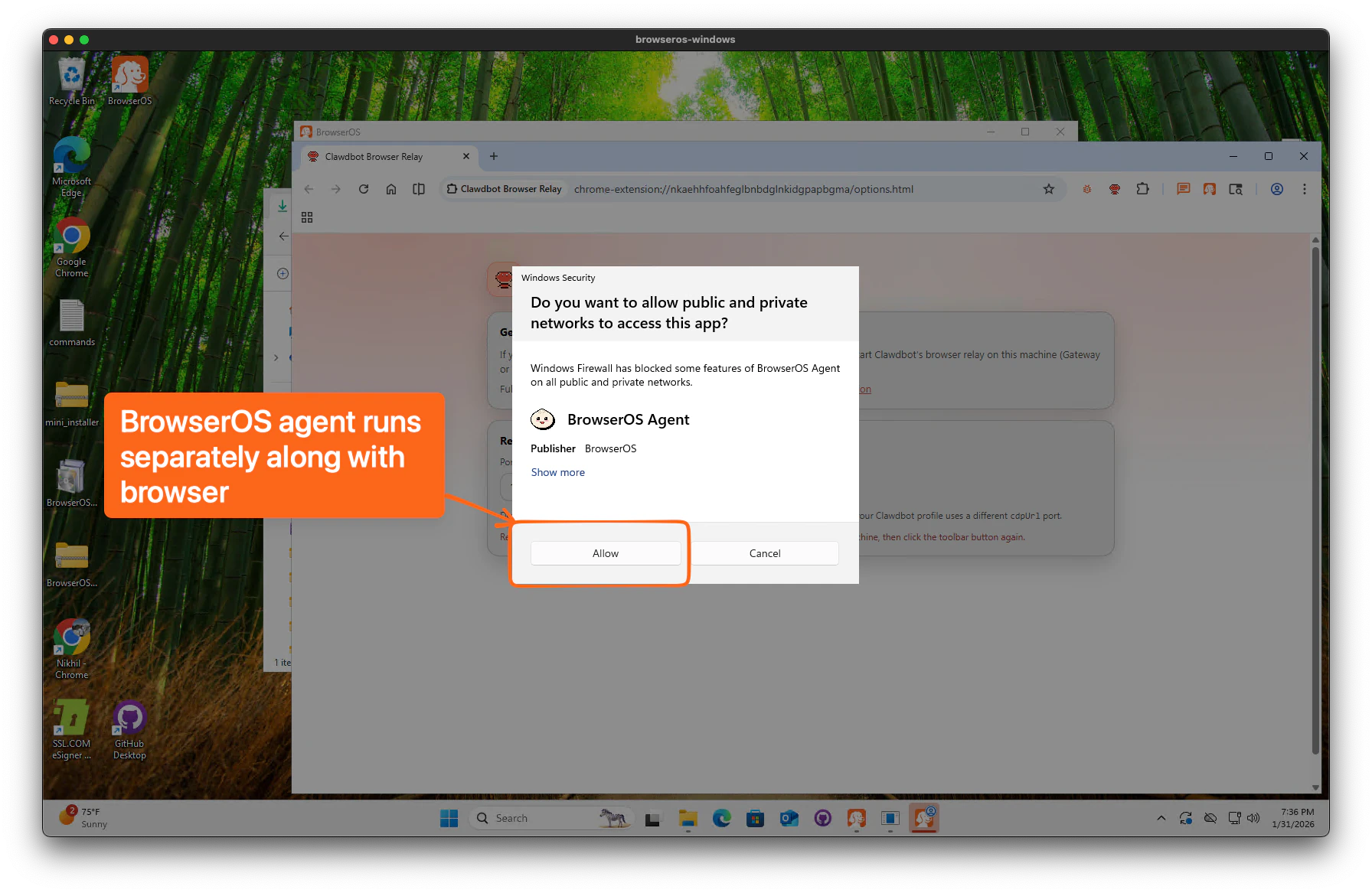
When BrowserOS starts for the first time on Windows, a popup will ask if you want to allow **BrowserOS Agent** to access the network. Click **Allow** — the agent runs as a separate process alongside the browser and needs this permission to work. If you clicked **Cancel** or missed this prompt, the agent won't be able to connect.
## Windows: Did you allow the BrowserOS Agent?
When BrowserOS starts for the first time on Windows, a popup will ask if you want to allow **BrowserOS Agent** to access the network. Click **Allow** — the agent runs as a separate process alongside the browser and needs this permission to work. If you clicked **Cancel** or missed this prompt, the agent won't be able to connect.
 To fix this, go to **Windows Security → Allow an app through your network settings**, and make sure **BrowserOS Agent** is enabled.
## Fix It
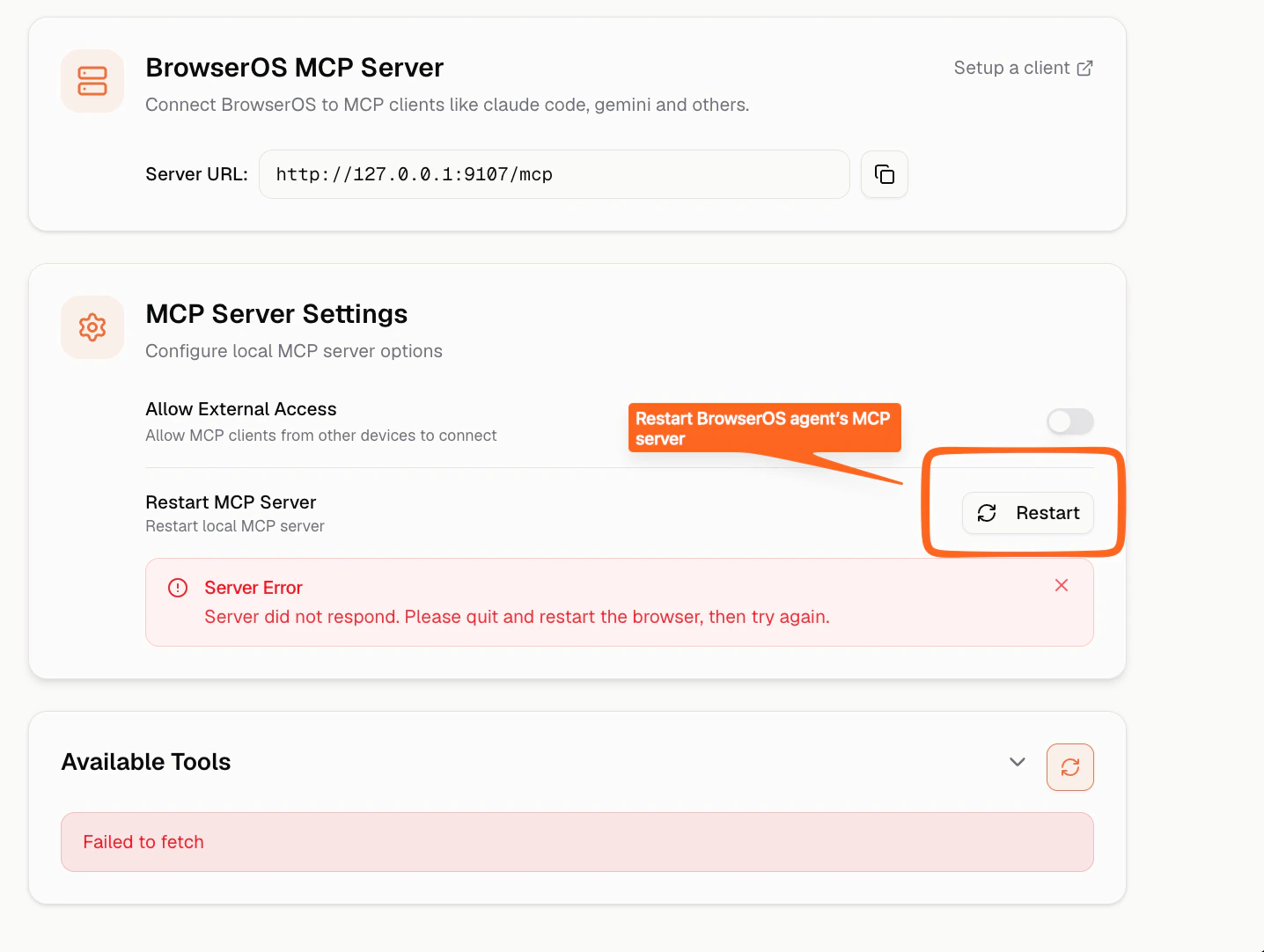
Open **Settings** from the sidebar, scroll to the MCP Server section, and click **Restart**. Wait a couple of minutes.
To fix this, go to **Windows Security → Allow an app through your network settings**, and make sure **BrowserOS Agent** is enabled.
## Fix It
Open **Settings** from the sidebar, scroll to the MCP Server section, and click **Restart**. Wait a couple of minutes.
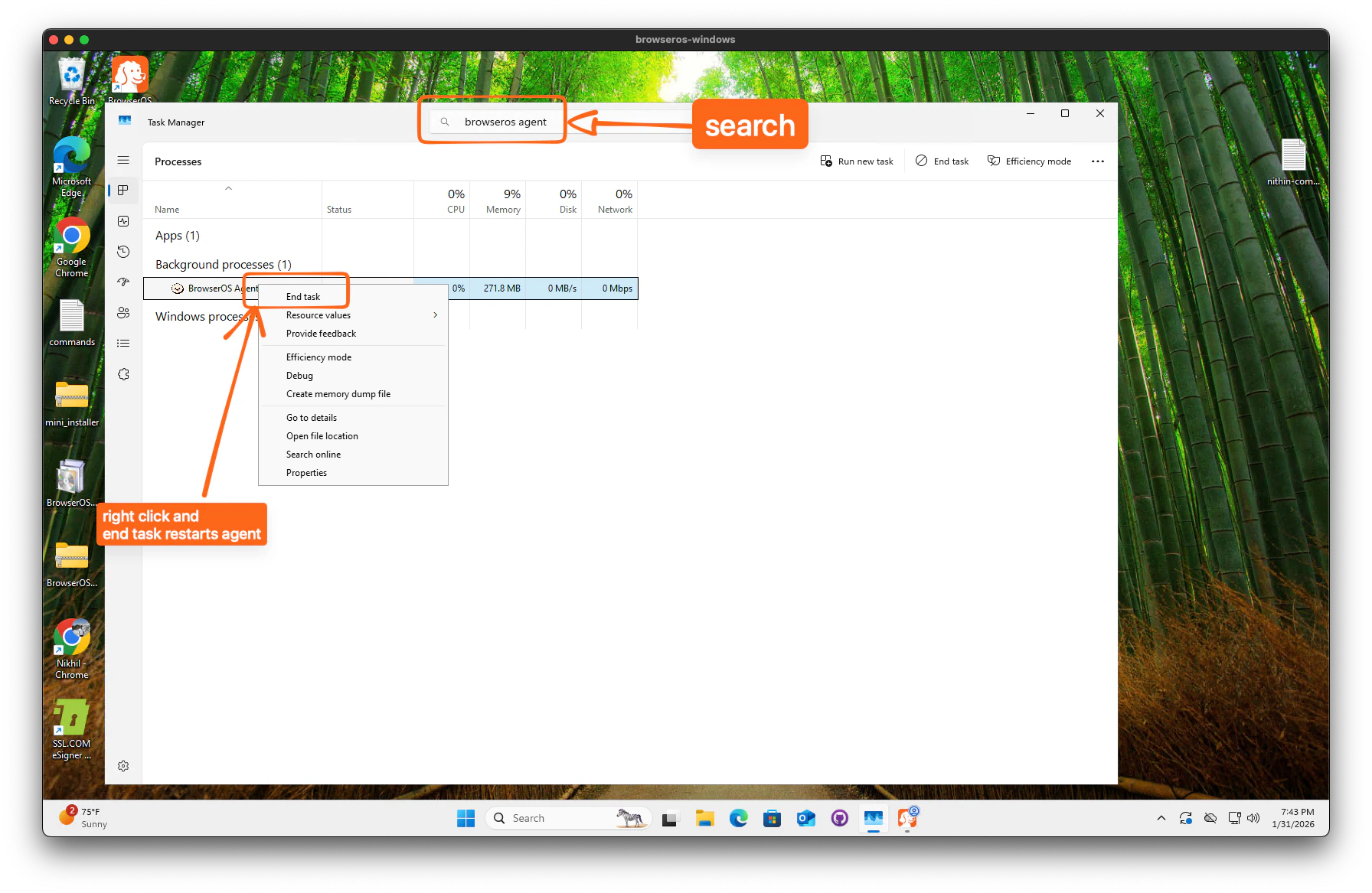
 1. Open **Task Manager** — press `Ctrl + Shift + Esc` or right-click the taskbar and select **Task Manager**.
2. In the search bar at the top, type **browseros agent**.
3. Right-click **BrowserOS Agent** and select **End task**.
4. Reopen **BrowserOS** — the agent will restart automatically.
1. Open **Task Manager** — press `Ctrl + Shift + Esc` or right-click the taskbar and select **Task Manager**.
2. In the search bar at the top, type **browseros agent**.
3. Right-click **BrowserOS Agent** and select **End task**.
4. Reopen **BrowserOS** — the agent will restart automatically.
 If the agent still doesn't reconnect, end both **BrowserOS** and **BrowserOS Agent** in Task Manager, then reopen the app.
Right-click BrowserOS in the Dock → **Quit**, then reopen the app.
## Still Not Working?
The agent runs on port `9100` by default. If another application is using this port, BrowserOS cannot start the agent.
Find the process:
```bash theme={null}
lsof -i :9100
```
Kill it (replace `PID` with the process ID from above):
```bash theme={null}
kill -9 PID
```
Find the process:
```powershell theme={null}
netstat -ano | findstr :9100
```
Kill it (replace `PID` with the process ID from above):
```powershell theme={null}
taskkill /PID PID /F
```
Then restart BrowserOS.
Some firewalls may block local connections. Make sure your firewall allows connections to `127.0.0.1:9100`.
**Windows users:** Antivirus software sometimes triggers a false positive. Try temporarily disabling your antivirus and restarting BrowserOS.
## Get Help
If you're still experiencing issues, reach out:
Get help from the community
Join our Slack
If the agent still doesn't reconnect, end both **BrowserOS** and **BrowserOS Agent** in Task Manager, then reopen the app.
Right-click BrowserOS in the Dock → **Quit**, then reopen the app.
## Still Not Working?
The agent runs on port `9100` by default. If another application is using this port, BrowserOS cannot start the agent.
Find the process:
```bash theme={null}
lsof -i :9100
```
Kill it (replace `PID` with the process ID from above):
```bash theme={null}
kill -9 PID
```
Find the process:
```powershell theme={null}
netstat -ano | findstr :9100
```
Kill it (replace `PID` with the process ID from above):
```powershell theme={null}
taskkill /PID PID /F
```
Then restart BrowserOS.
Some firewalls may block local connections. Make sure your firewall allows connections to `127.0.0.1:9100`.
**Windows users:** Antivirus software sometimes triggers a false positive. Try temporarily disabling your antivirus and restarting BrowserOS.
## Get Help
If you're still experiencing issues, reach out:
Get help from the community
Join our Slack