
The endpoint URL
Open a new tab in BrowserOS neo and click MCP in the sidebar. The top of the page shows the endpoint URL:One-click setup
Under the endpoint URL you’ll see the list of AI tools we support out of the box. Find yours, click Connect, and restart the AI tool.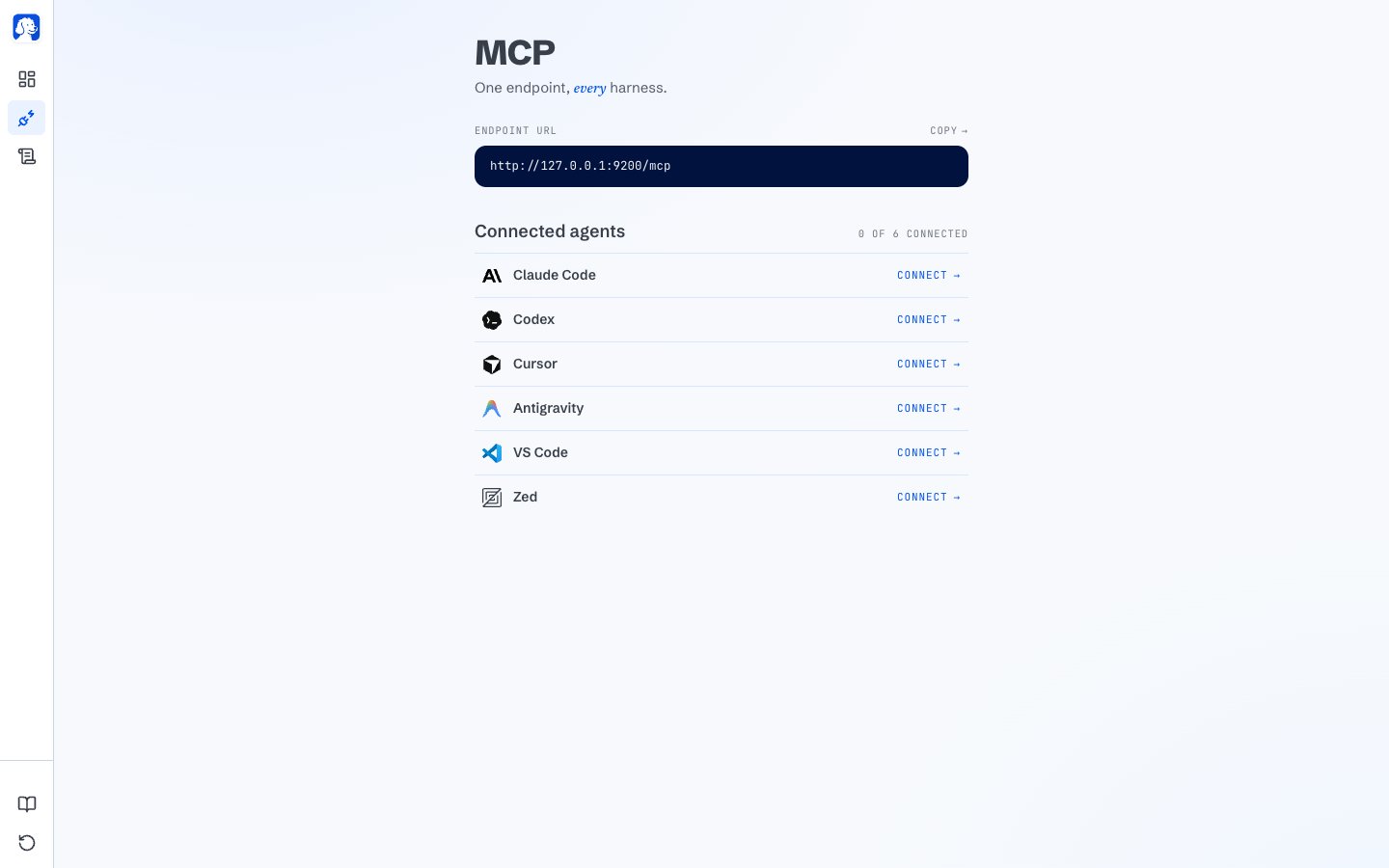
One endpoint, one click per supported AI tool.
browseros-neo into the AI tool’s own MCP config file, pointing at the endpoint URL above. Existing managed BrowserOS neo and BrowserClaw entries are recognized and migrated automatically.
Don’t see your AI tool?
If your AI tool supports MCP but isn’t on the one-click board, we’d love to add it. Head to BrowserOS Discussions and open a new discussion. A short template that helps us move fast:Claude Desktop and Cowork
Install the BrowserOS neo extension into Claude Desktop with a single file.
Manual URL setup
Guided setup for Hermes Agent, Vercel AI SDK, OpenClaw, and other MCP-compatible AI tools.
Where to next
How BrowserOS neo works
A guided walkthrough from install to your first AI-driven session.
Your dashboard
Every part of the new-tab dashboard and what it tells you.