
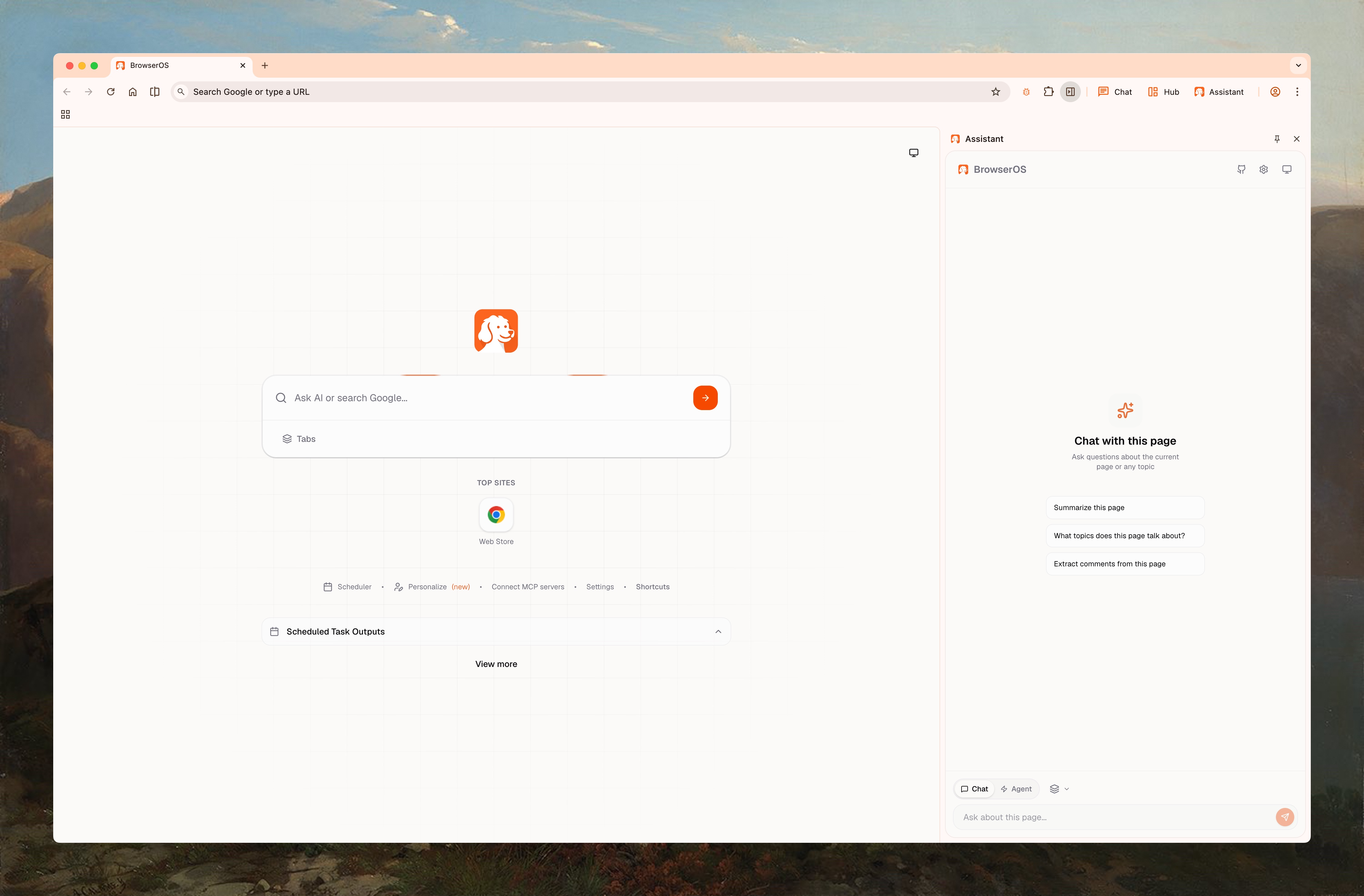
Three Ways to Use AI
Chat Mode
Ask questions about the page you’re viewing. Summarize articles, extract data, translate content—without leaving the page.
Agent Mode
Describe a task and watch AI execute it: clicking, typing, navigating. Automate form filling, data extraction, and multi-step workflows.
Graph Mode
Build reliable, repeatable workflows as visual graphs. Edit steps, save, and run anytime. Coming soon.
Quick Start
1
Download BrowserOS
Get the latest release from browseros.com for macOS, Windows, or Linux.
2
Import from Chrome
Navigate to
chrome://settings/importData and import your bookmarks, passwords, and settings in one click.3
Configure your AI
BrowserOS includes a default AI model with limited daily usage for testing. For the full experience, bring your own API keys.
Set up your LLM provider
Configure Gemini, Claude, OpenAI, or run models locally with Ollama
4
Try it out
Open any webpage and press the Assistant button in the toolbar. Ask a question about the page, or describe a task to automate.
Which AI Model Should I Use?
- For Chat Mode
- For Agent Mode
Any model works great, including local LLMs.
- Ollama or LM Studio — Free, runs locally, great for quick questions
- Gemini Flash — Fast and affordable
- Claude or GPT-4 — Best quality responses
Why BrowserOS?
Privacy-First
Run AI locally with Ollama, or bring your own API keys. Your browsing data never leaves your machine unless you choose.
Open Source
100% open source under AGPL-3.0. Inspect the code, contribute features, or fork it for your needs.
Works with Your Tools
Built-in MCP servers for Gmail, Calendar, Docs, Sheets, Notion. Connect to Claude Code or Gemini CLI for developer workflows.
Chrome Compatible
All your Chrome extensions work. Import bookmarks, passwords, and settings in one click.