Use Your Existing Subscription
Already paying for ChatGPT Pro or GitHub Copilot? Connect your existing account to BrowserOS with a single sign-in — no API keys, no extra cost.ChatGPT Pro / PlusSign in with your OpenAI account. Access GPT-5 Codex, GPT-5.4, and the full Codex lineup with up to 400K context.
GitHub CopilotSign in with your GitHub account. Access 19+ models including Claude, GPT-5, and Gemini through one subscription.
Which Model Should I Use?
Kimi K2.5 — In Partnership with Moonshot AI
BrowserOS has partnered with Moonshot AI to bring Kimi K2.5 as a first-class provider. Kimi K2.5 is now the recommended model in BrowserOS and is set as the default provider. For a limited time, BrowserOS users get extended usage limits powered by Kimi K2.5. This means you can use the AI agent, chat, and other AI-powered features with increased limits at no cost.Open Source
Fully open-source model you can inspect and trust.
Multimodal
Supports images out of the box, including screenshots and visual context.
Great for Agents
Strong reasoning for browser automation, form filling, and multi-step workflows.
Affordable
Excellent agentic performance at a fraction of the cost of other frontier models.
Why Kimi K2.5?
Kimi K2.5 offers excellent performance for agentic tasks at a fraction of the cost of other frontier models. It supports images, has a 128,000 token context window, and delivers strong results on browser automation tasks. Combined with BrowserOS’s open-source agent framework, this makes for a powerful and affordable AI browsing experience.Bring Your Own Kimi API Key
You can also bring your own Kimi API key if you want to use Kimi K2.5 beyond the extended usage period, or if you want your own dedicated limits. Get your API key:- Go to platform.moonshot.ai and create an account
- Navigate to the API keys section in your dashboard
- Click Create new API key and copy the key
- Go to
chrome://browseros/settings - Click USE on the Moonshot AI card
- Enter your API key (it will be encrypted and stored locally on your machine)
- The model is pre-configured to
kimi-k2.5with a 128,000 context window - Click Save
Cloud Providers
Connect to powerful AI models using your API keys. Your keys stay on your machine — requests go directly to the provider.Gemini (Free)
Gemini (Free)
Gemini Flash is fast and free. Google gives you 20 requests per minute at no cost.Get your API key:
- Go to aistudio.google.com
- Click Get API key in the sidebar
-
Click Create API key and copy it

-
Go to
chrome://browseros/settings - Click USE on the Gemini card
-
Set Model ID to
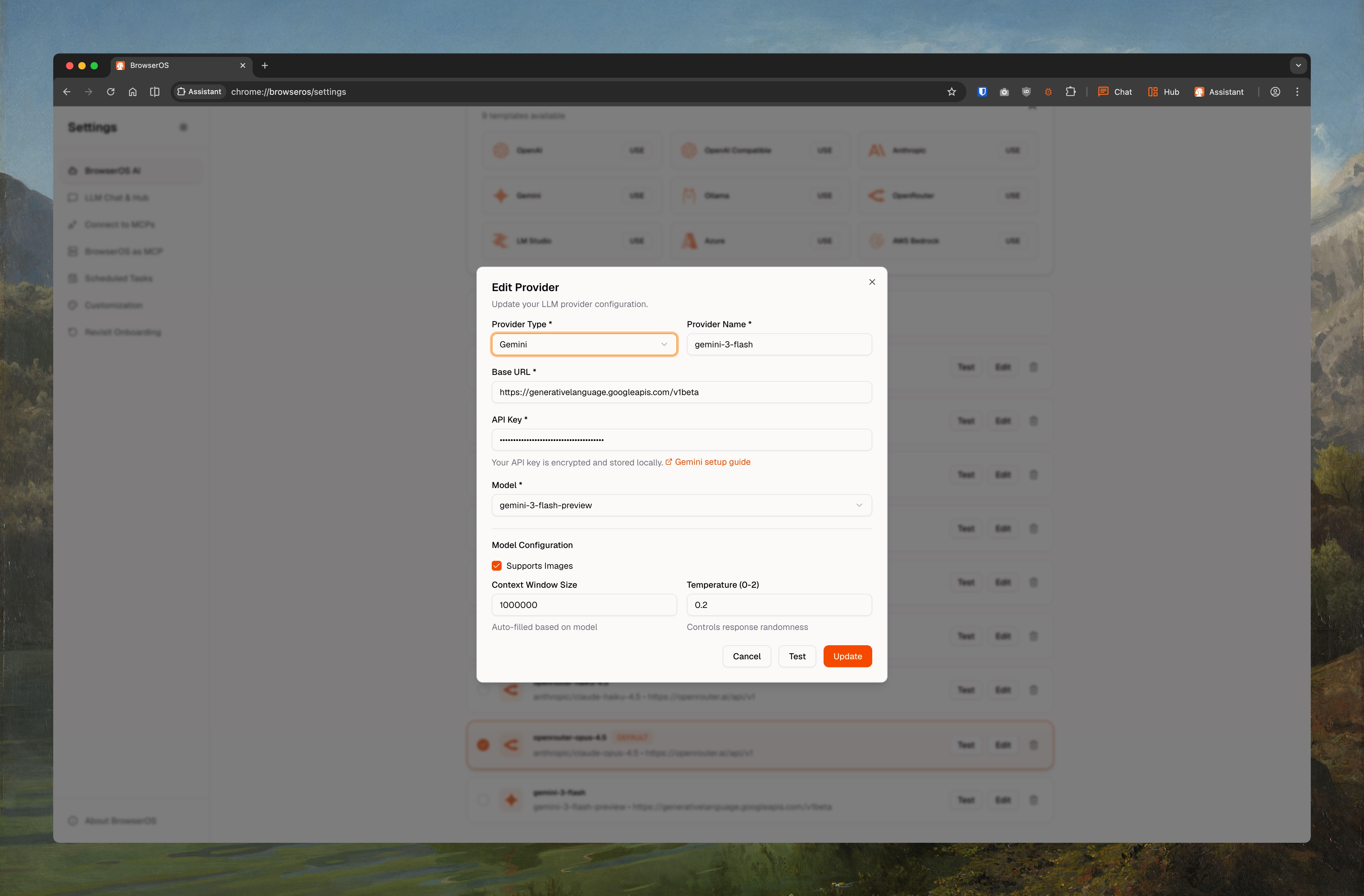
gemini-2.5-flash(orgemini-2.5-pro,gemini-3-pro-preview,gemini-3-flash-preview) - Paste your API key
-
Check Supports Images, set Context Window to
1000000 -
Click Save
Claude (Best for Agents)
Claude (Best for Agents)
Claude Opus 4.5 gives the best results for Agent Mode.Get your API key:
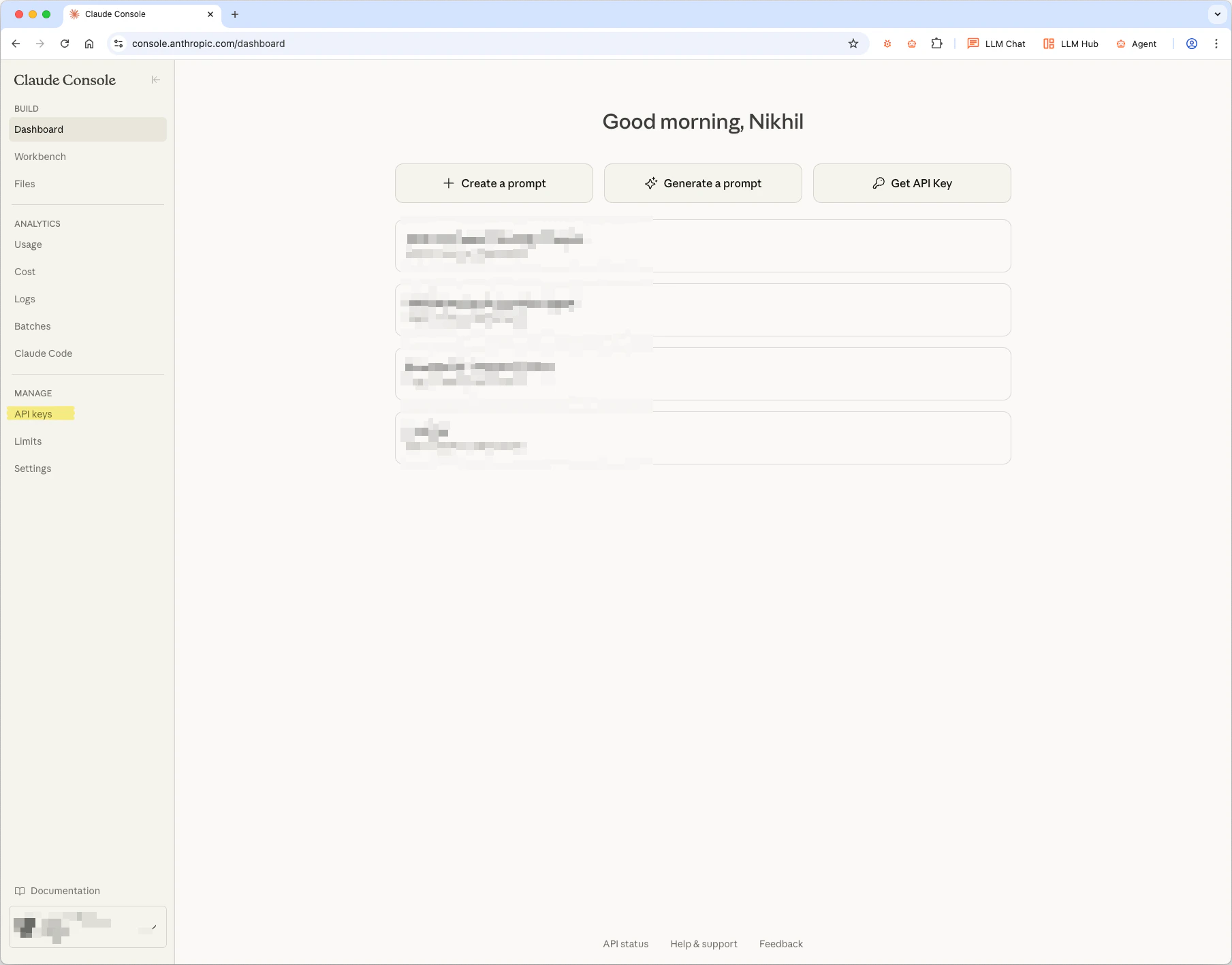
- Go to console.anthropic.com
- Click API keys in the sidebar
-
Click Create Key and copy it
-
Go to
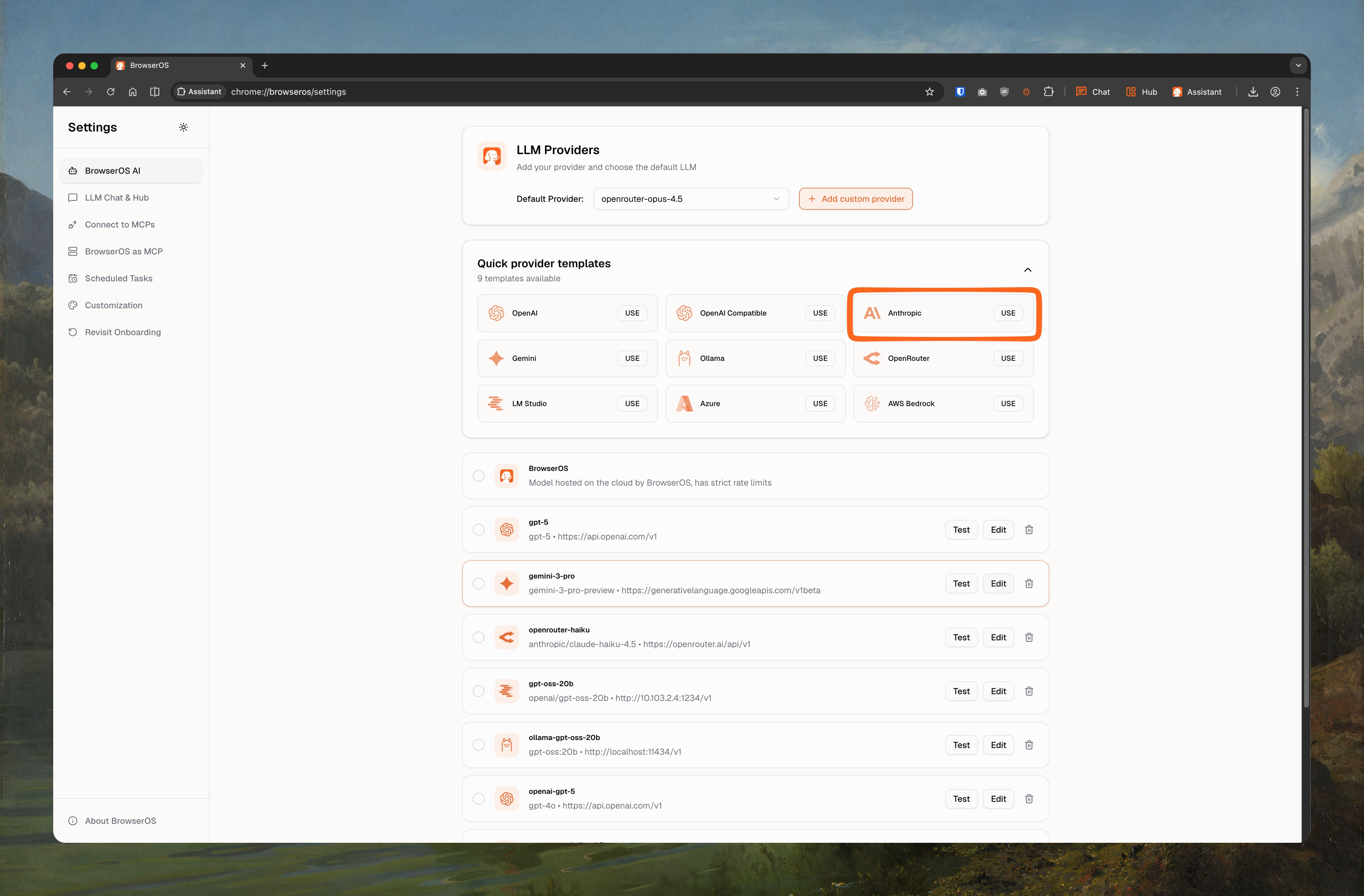
chrome://browseros/settings - Click USE on the Anthropic card
-
Set Model ID to
claude-opus-4-5-20251101(orclaude-sonnet-4-5-20250929,claude-haiku-4-5-20251001) - Paste your API key
-
Check Supports Images, set Context Window to
200000 -
Click Save
OpenAI
OpenAI
GPT-5 is OpenAI’s most capable model for both chat and agent tasks.Get your API key:
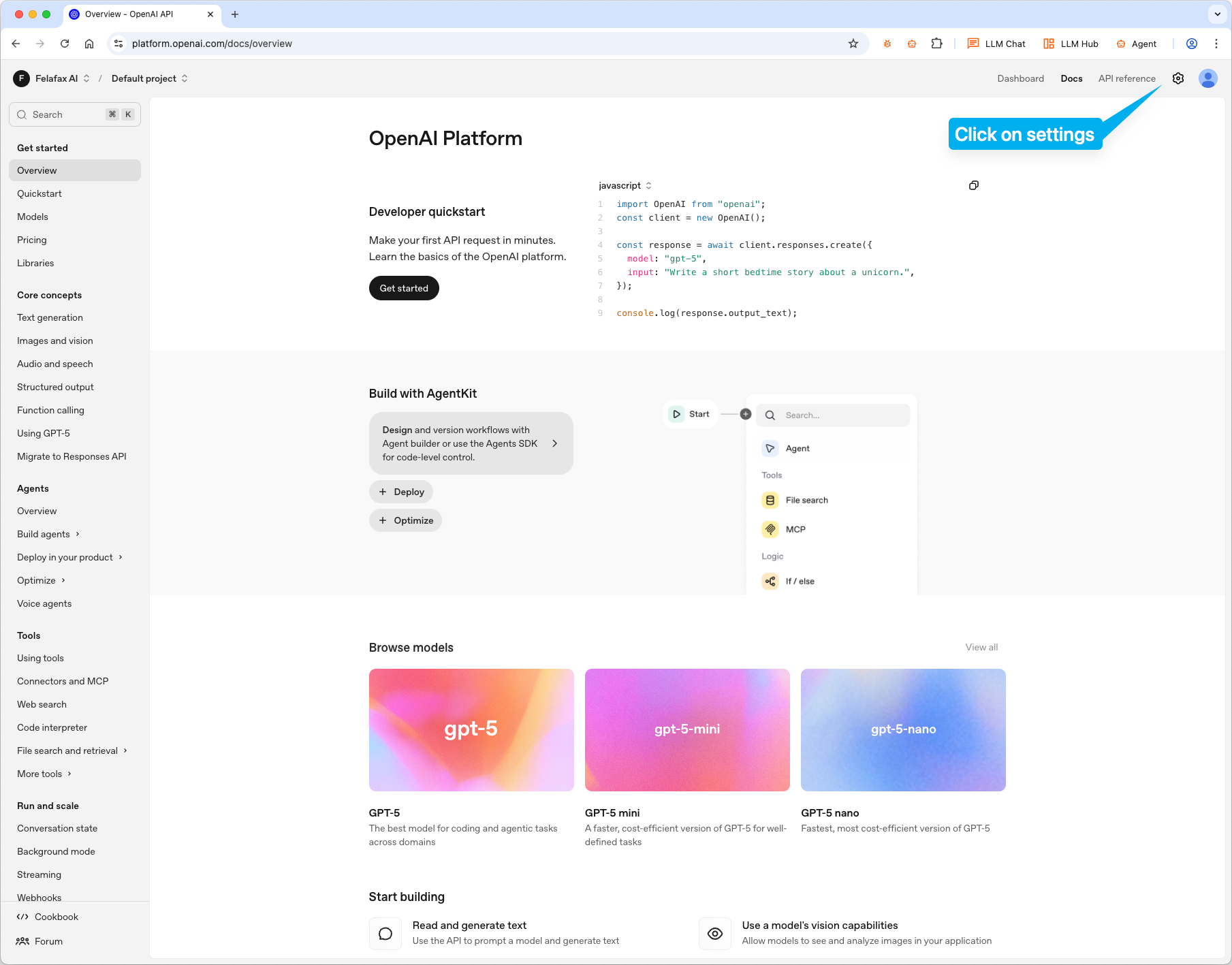
- Go to platform.openai.com
- Click settings icon → API keys
-
Click Create new secret key and copy it
-
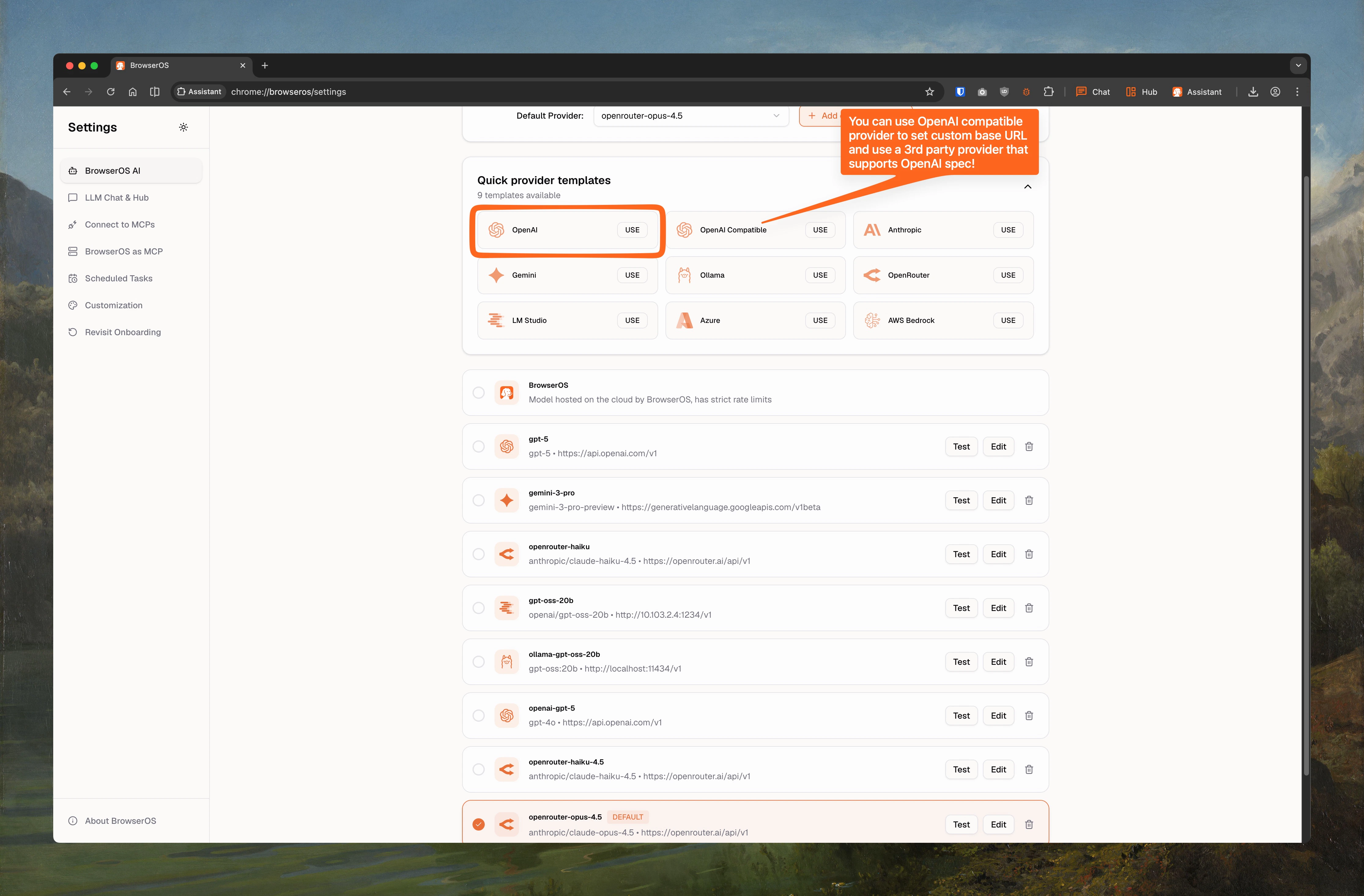
Go to
chrome://browseros/settings - Click USE on the OpenAI card
-
Set Model ID to
gpt-5(orgpt-5.2,gpt-5-mini,gpt-4.1,o4-mini) - Paste your API key
-
Check Supports Images, set Context Window to
200000 -
Click Save
OpenRouter
OpenRouter
Access 500+ models through one API.Get your API key: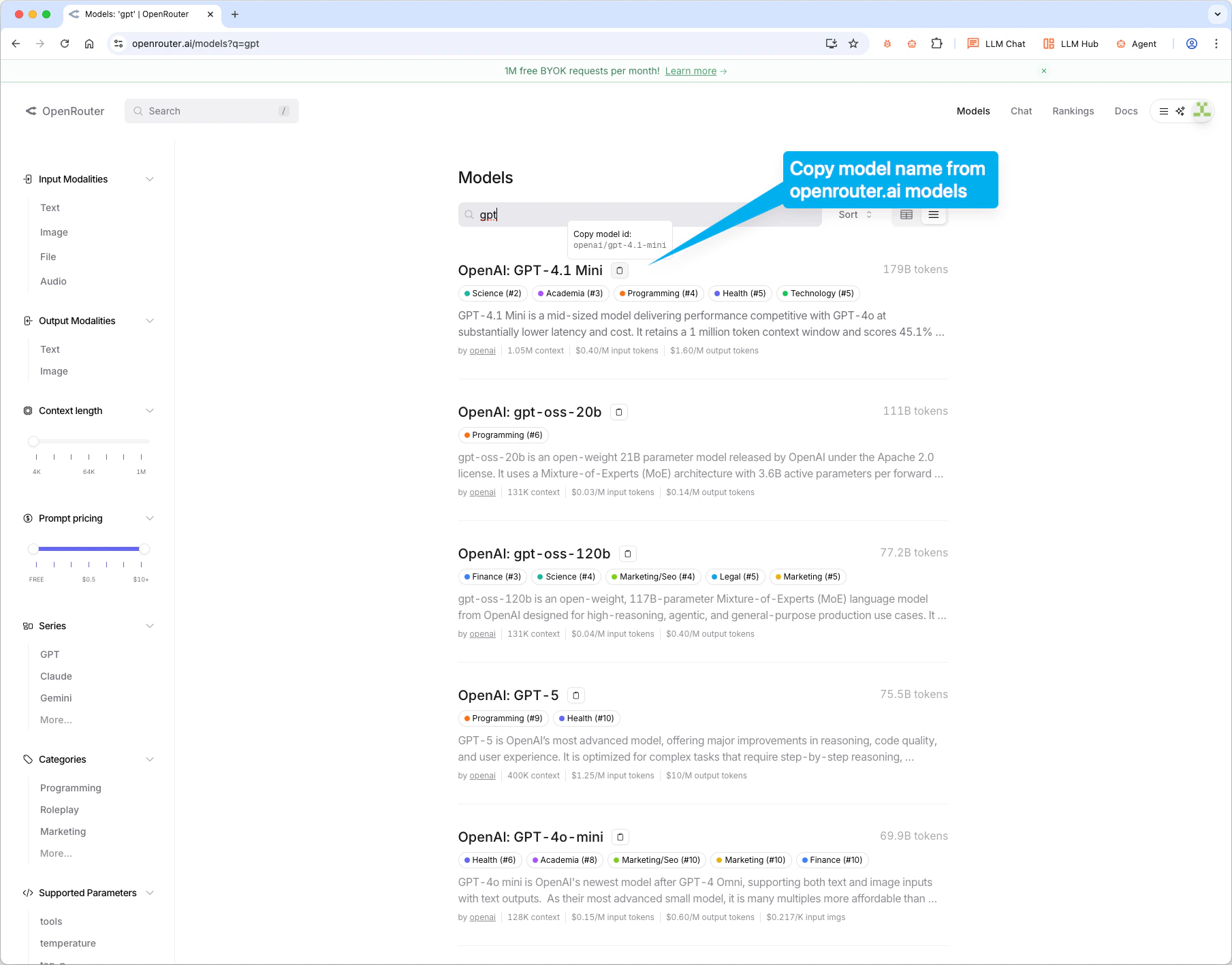
- Go to openrouter.ai and sign up
- Go to openrouter.ai/keys and create a key
anthropic/claude-opus-4.5, google/gemini-2.5-flash).-
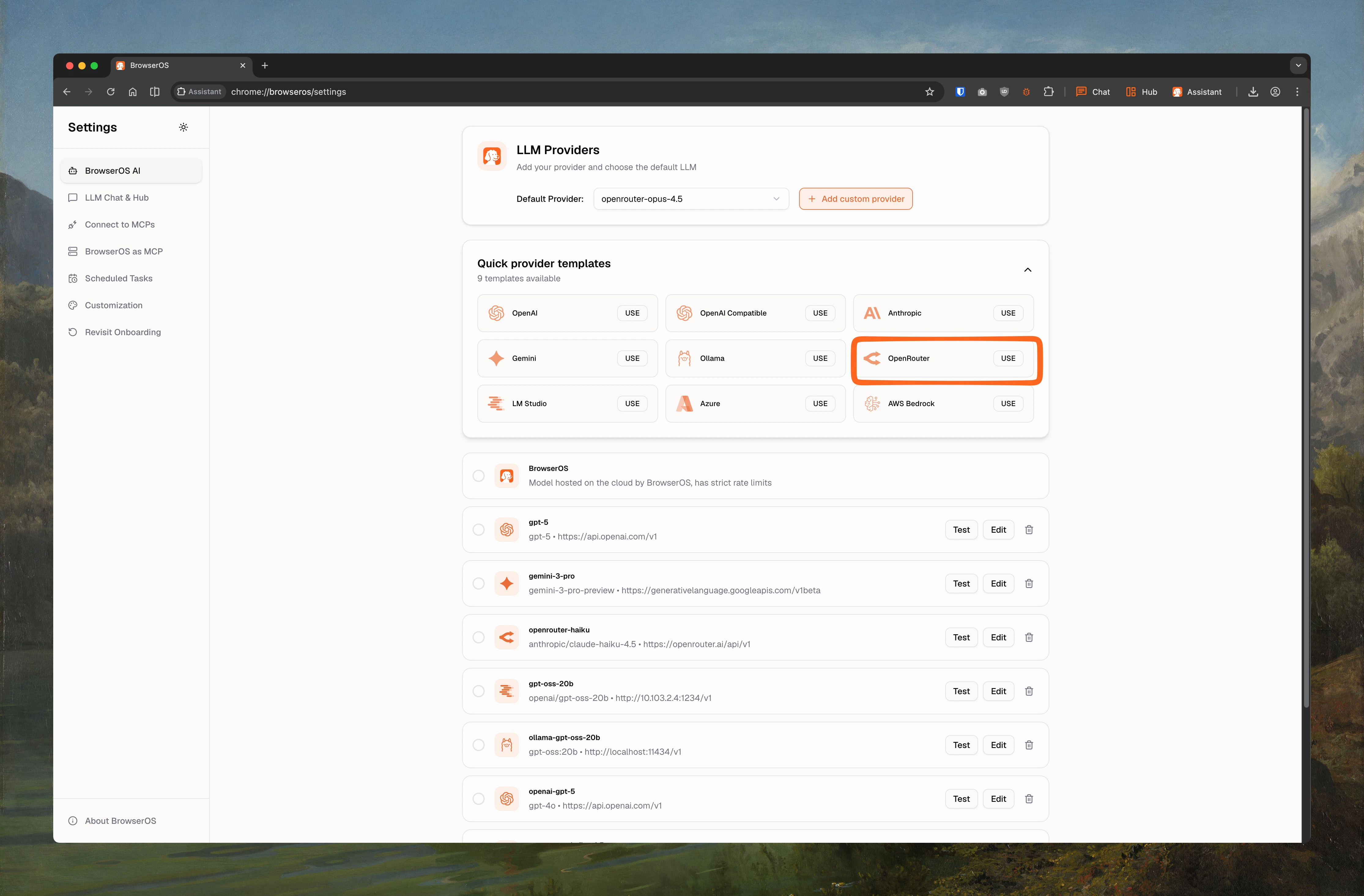
Go to
chrome://browseros/settings - Click USE on the OpenRouter card
- Paste the model ID and your API key
- Set Context Window based on the model
-
Click Save
Azure OpenAI
Azure OpenAI
Use OpenAI models hosted on your own Azure subscription for enterprise compliance and data residency.Prerequisites:
- An Azure subscription with access to Azure OpenAI Service
- A deployed model (e.g., GPT-4o) in your Azure OpenAI resource
- Go to portal.azure.com → Azure OpenAI resource
- Navigate to Keys and Endpoint
- Copy Key 1 and your Endpoint URL
- Go to
chrome://browseros/settings - Click USE on the Azure card
- Set Base URL to your Azure endpoint (e.g.,
https://your-resource.openai.azure.com/openai/deployments/your-deployment) - Set Model ID to your deployment name
- Paste your API key
- Check Supports Images, set Context Window to
128000 - Click Save
AWS Bedrock
AWS Bedrock
Access Claude, Llama, and other models through your AWS account with IAM-based authentication.Prerequisites:
- An AWS account with Amazon Bedrock enabled
- Model access granted in the Bedrock console for your desired models
- Go to the AWS Console → IAM
- Create or use an existing access key with Bedrock permissions
- Note your Access Key ID, Secret Access Key, and Region
- Go to
chrome://browseros/settings - Click USE on the AWS Bedrock card
- Set Base URL to your Bedrock endpoint (region-specific)
- Set Model ID to the Bedrock model ID (e.g.,
anthropic.claude-3-sonnet-20240229-v1:0) - Paste your credentials
- Check Supports Images, set Context Window to
200000 - Click Save
OpenAI Compatible
OpenAI Compatible
Connect to any provider that implements the OpenAI-compatible API format (e.g., Together AI, Fireworks, Groq, Perplexity).Add to BrowserOS:
- Go to
chrome://browseros/settings - Click USE on the OpenAI Compatible card
- Set Base URL to the provider’s API endpoint
- Set Model ID to the model you want to use
- Paste your API key
- Set Supports Images and Context Window based on the model
- Click Save
Local Models
Local Model Guide
Run AI completely offline with Ollama or LM Studio. Includes recommended models, context length setup, and configuration steps.
Switching Between Models
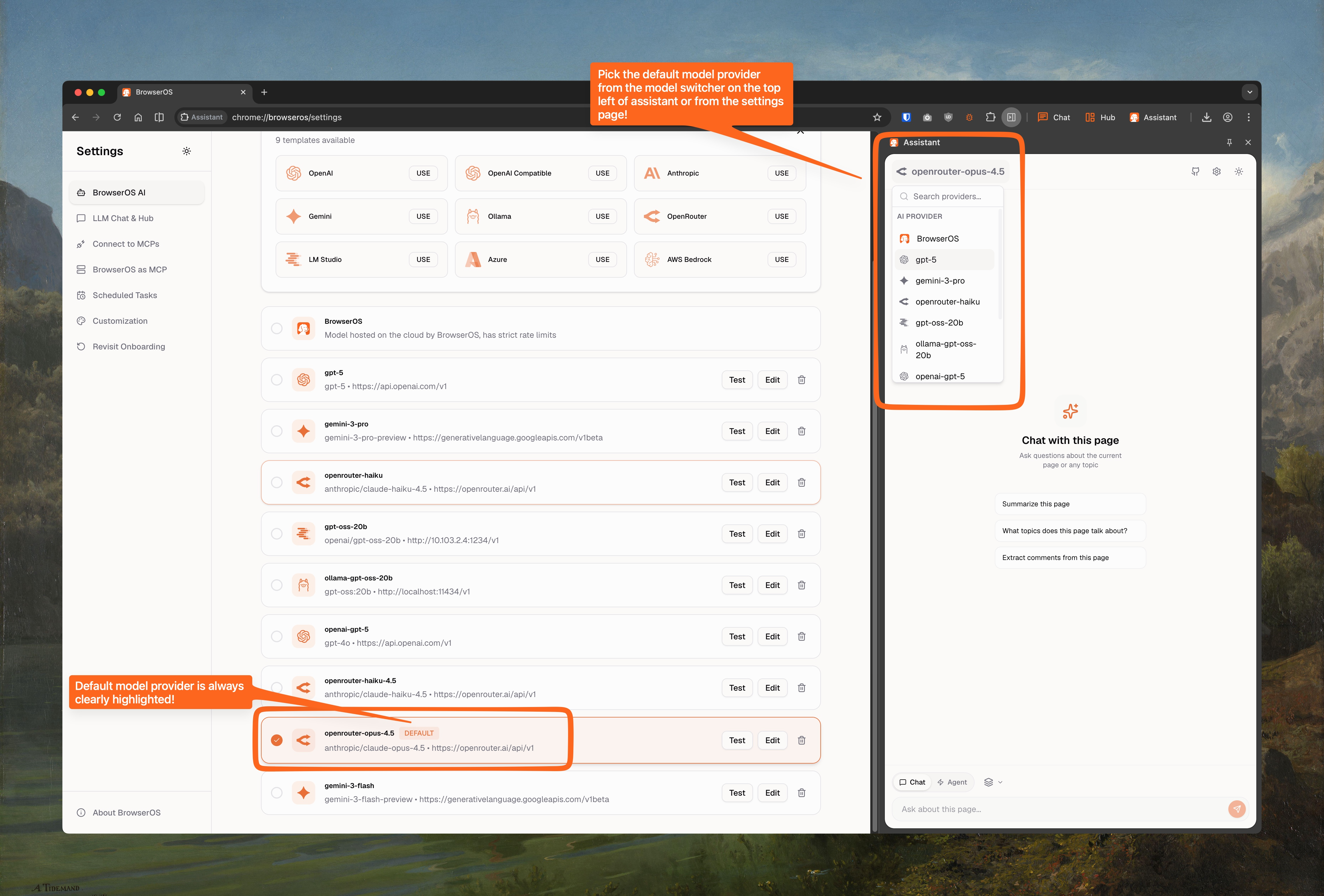
Use the model switcher in the Assistant panel to change providers anytime. The default provider is highlighted.