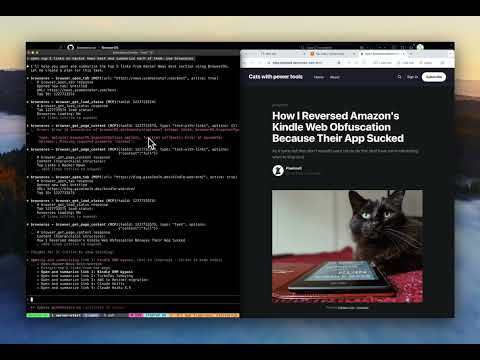
Unlike Chrome DevTools MCP which requires setting up debug profiles and running separate servers, BrowserOS MCP works out of the box. Just copy the URL from settings and connect.
Why Use BrowserOS with Claude Code?
Agentic Coding
Claude tests your web app, reads console errors, and fixes the code — all in one loop.
40+ App Integrations
Gmail, Slack, GitHub, Jira, Notion, Google Sheets, and more — accessible directly from your AI agent.
Data Extraction
Extract your LinkedIn profile, tweets, or any authenticated page content.
Task Automation
Fill forms, navigate multi-step workflows, and automate repetitive browser tasks.
53+ MCP Tools
Full browser control: tabs, navigation, clicks, typing, screenshots, bookmarks, history, tab groups, and window management.
Zero Config Auth
Connect external services via OAuth — credentials are managed securely, never stored in BrowserOS.
Getting Started
1
Open BrowserOS Settings
Navigate to
chrome://browseros/mcp or click Settings → BrowserOS as MCP in the sidebar.2
Copy the MCP URL
Copy the Server URL shown on the page (e.g., 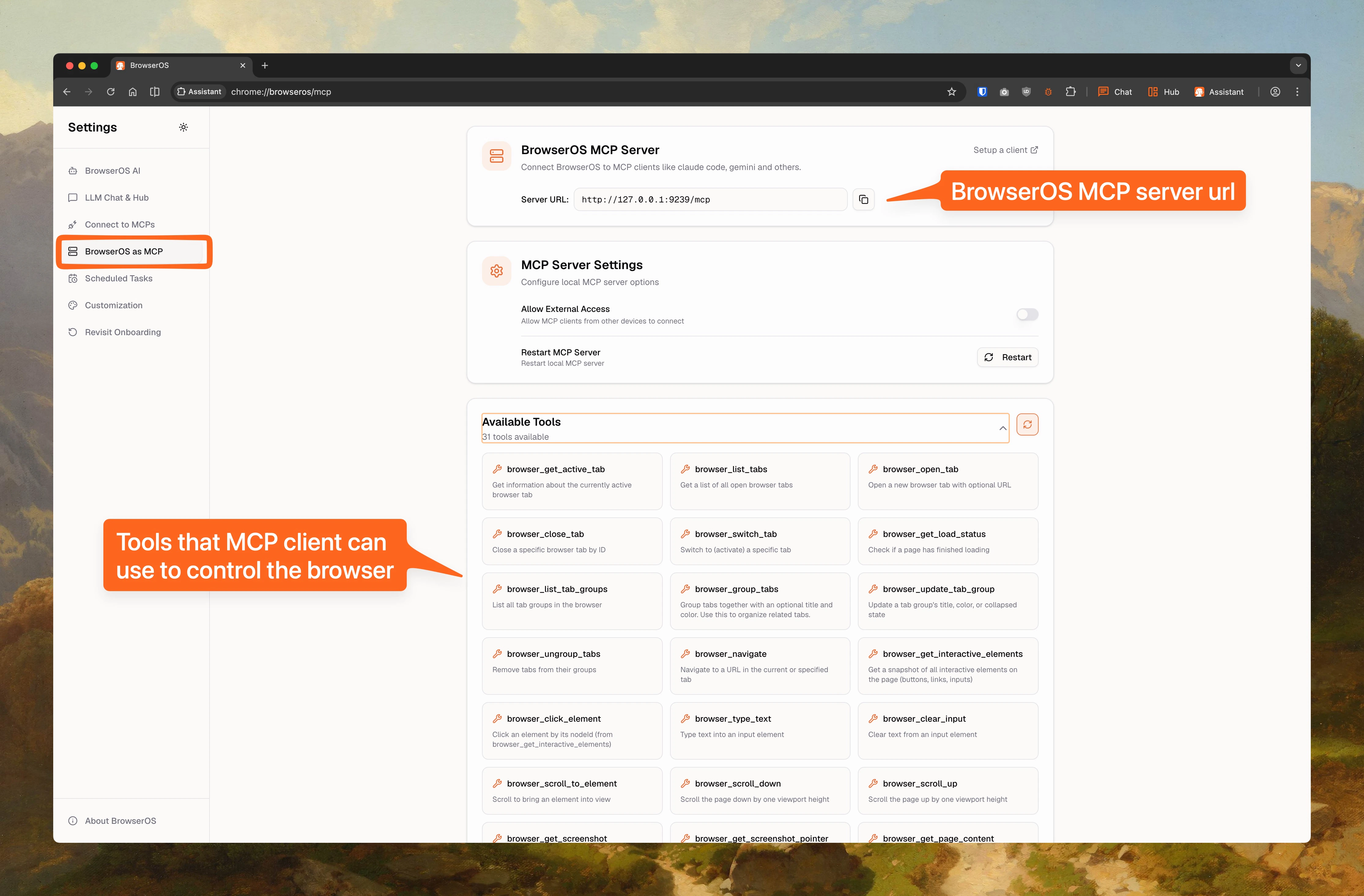
http://127.0.0.1:9239/mcp).3
Connect your MCP client
Use the tabs below to connect your preferred client.
- Claude Code
- Gemini CLI
- Codex
- OpenClaw
- Claude Desktop
Add BrowserOS to Claude Code:Start Claude Code and try it:To remove later:
Connect from a Remote Machine
The BrowserOS MCP server only listens on127.0.0.1, so by default only programs on the same computer can reach it. If your agent runs somewhere else — for example a Hermes or OpenClaw agent on a VPS controlling BrowserOS on your laptop — you need a reverse tunnel that forwards requests from the remote machine to the MCP server on your laptop.
All commands below use port 9239 — replace it with the port shown on your chrome://browseros/mcp settings page.
- Tailscale (recommended)
- Cloudflare Tunnel
- ngrok
Tailscale puts your laptop and VPS on a private network, so the MCP server is never exposed to the public internet and the URL never changes.Run
- Install Tailscale on both your laptop and the VPS, and sign in to the same tailnet on both.
- On the laptop, share the MCP port with your tailnet:
- Tailscale prints an HTTPS URL like
https://your-laptop.tailnet-name.ts.net. On the VPS, point your agent at that URL with the/mcppath:
tailscale serve reset on the laptop to stop sharing.The connection only works while your laptop is awake, BrowserOS is running, and the tunnel process is alive. If a remote agent that was working suddenly stops connecting, check those three first — and if you use ngrok or a Cloudflare quick tunnel, remember the URL rotates on every restart, so your agent may be pointing at a dead URL. Tailscale avoids this because its hostnames are stable.
Example Prompts
Try these prompts once connected
Try these prompts once connected
Extract structured data from any page you’re logged into — no scraping setup needed.Test your web app end-to-end without leaving the terminal — Claude navigates, interacts, and reports errors back.Capture visual snapshots of any page for debugging, documentation, or design review.Search through your real browsing history to find pages you visited earlier.Access your email directly from the agent — read, search, and summarize without switching windows.Chain multiple services together in a single prompt — file issues, notify your team, and stay in flow.
Browser Automation Tools
BrowserOS exposes 53 browser automation tools to MCP clients, organized into the following categories:Content & Observation (8 tools)
Content & Observation (8 tools)
Interaction & Input (14 tools)
Interaction & Input (14 tools)
File & Export (3 tools)
File & Export (3 tools)
Window Management (5 tools)
Window Management (5 tools)
Tab Groups (5 tools)
Tab Groups (5 tools)
Bookmarks (6 tools)
Bookmarks (6 tools)
History (4 tools)
History (4 tools)
40+ External App Integrations
BrowserOS connects your AI agent directly to the tools you already use — no separate MCP servers to install or configure. Everything is accessible through the same BrowserOS MCP connection.How It Works
1
Agent calls an external service tool
Your AI agent calls a tool like
gmail_search_messages through the BrowserOS MCP.2
OAuth login (first time only)
If this is your first time using that service, BrowserOS opens an OAuth login page in the browser. Log in and authorize access.
3
Tool executes and returns results
Once authenticated, the tool runs and returns results to your agent. Future calls to the same service work automatically — no re-authentication needed.
Your credentials are managed securely via OAuth and are never stored in BrowserOS. Tokens are refreshed transparently, and you can revoke access at any time from the service provider.
Supported Services
Email
Calendar & Scheduling
Calendar & Scheduling
Communication
Communication
Development
Development
Project Management
Project Management
Productivity & Docs
Productivity & Docs
File Storage
File Storage
Design
Design
CRM & Marketing
CRM & Marketing
E-commerce & Payments
E-commerce & Payments
Analytics
Analytics
Support
Support
Search & AI
Search & AI
Demo Videos
Agentic coding workflow
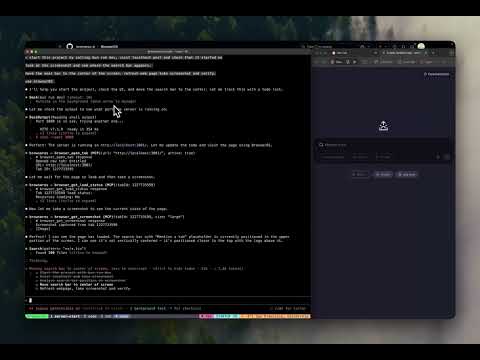
Browser automation with Claude Code