
How It Works
BrowserOS uses the Model Context Protocol (MCP) to connect your apps. You do not need to install anything or manage API keys. Just sign in once and the assistant handles the rest.Smart App Connection
When you ask the assistant to do something that needs an app you have not connected yet, it shows an interactive card right in the conversation. You can connect the app with one click or choose to skip it. No need to set things up in advance.1
You make a request
Ask the assistant something like “What’s on my calendar today?” or “Send an email to Sarah.”
2
A connection card appears
The assistant detects the app is not connected and shows a card explaining why connecting it would help. You get two choices: Connect or Do it manually.
3
You connect or skip
- Connect: Opens a sign-in page. Authorize the app and the assistant continues with full integration access.
- Do it manually: The assistant skips the integration and navigates to the app’s website directly using browser automation.
4
The assistant continues
Once connected, the app stays linked for all future conversations. If you chose to skip, the assistant remembers and will not ask again.
Connect from the Sidebar
1
Open Connect Apps
Click Connect Apps in the sidebar.
2
Add an app
Click Add built-in app and select the app you want
3
Sign in
Complete the OAuth sign-in when prompted
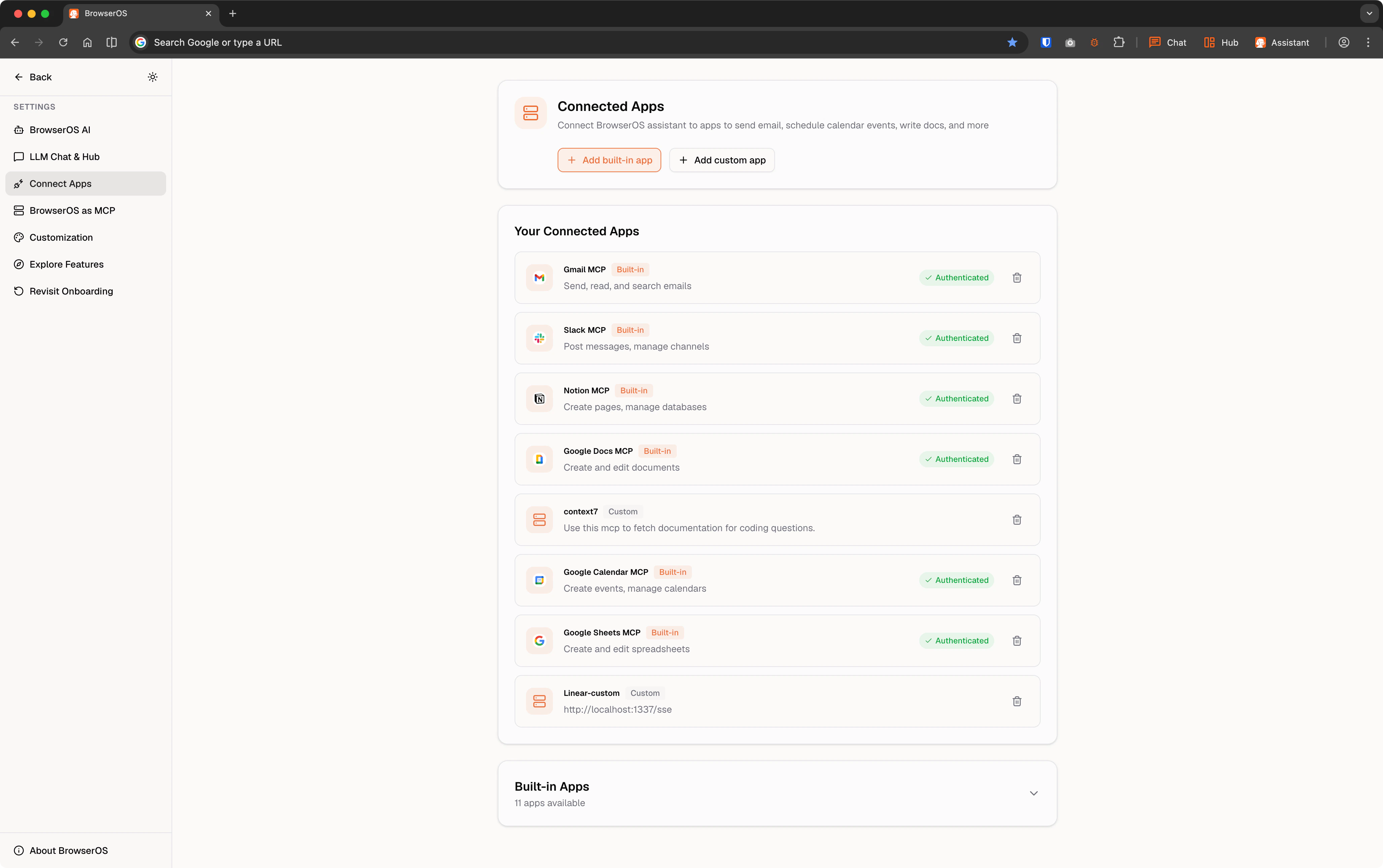
Connected apps show a green 'Authenticated' badge
40+ Supported Apps
BrowserOS connects to over 40 apps across every category you need.Email
Calendar and Scheduling
Calendar and Scheduling
Messaging
Messaging
Development
Development
Project Management
Project Management
Documents and Productivity
Documents and Productivity
File Storage
File Storage
Design
Design
CRM and Marketing
CRM and Marketing
E-commerce and Payments
E-commerce and Payments
Analytics
Analytics
Support
Support
Search and AI
Search and AI
Example Prompts
The assistant figures out which apps to use based on what you ask. Just describe what you want in plain language.Calendar
Calendar
- What’s on my calendar today?
- Schedule a meeting with Sarah tomorrow at 2pm
- When is my next meeting with the marketing team?
- Block off Friday afternoon for focus time
Email
- Show me unread emails from my manager
- Draft a reply to the last email from John thanking him for the update
- Find emails about the Q4 budget from last week
- Send an email to the team with the meeting notes
Messaging
Messaging
- Post a message to #general saying I’ll be out tomorrow
- What’s the latest message in #engineering?
- Send a DM to Sarah asking if she’s free for lunch
- Summarize what was discussed in #product today
Project Management
Project Management
- Create a new Linear issue for the homepage redesign
- What are my open tasks in Jira?
- Move the “Launch campaign” task to complete in Asana
- Add a comment to the latest ClickUp task
Documents
Documents
- Add “Review Q4 report” to my Notion tasks database
- Create a new page in my Projects database for the website redesign
- What are my open tasks in Notion?
- Update the status of the “Launch campaign” task to complete
Cross-App Workflows
The real power of connected apps is combining them in a single request. The assistant can pull data from one app and use it in another without you switching between tabs.Email to task
“Find action items in my latest emails and add them to my Notion tasks”
Meeting prep
“Check my calendar for tomorrow, then draft an email to John summarizing what we’re meeting about”
Bug triage
“Test the checkout flow on our staging site, file a Linear issue if anything is broken, and post a summary to #engineering on Slack”
Sales pipeline
“Pull my open deals from Salesforce and create a summary spreadsheet in Google Sheets”
Content roundup
“Check the latest pull requests on our main repo and post a daily summary to #dev-updates on Slack”
Expense tracking
“Find all receipts in my Gmail from this month and organize them in a Google Sheet”
Add a Custom MCP Server
You can connect any MCP-compatible server that exposes an SSE endpoint.- Go to Settings > Connected Apps
- Click Add custom app
- Enter your server URL (e.g.,
http://localhost:8000/sse) and give it a name
Connect to OAuth-Protected Remote Servers
Some remote MCP servers (like Atlassian Jira, GitHub, etc.) require OAuth authentication. Use mcp-remote and supergateway to handle the OAuth flow locally:http://localhost:8000/sse as a custom MCP in BrowserOS.
Keep the terminal running while you use BrowserOS. The local server handles authentication and proxies requests to the remote MCP server.
Example: Atlassian Jira
Example: Atlassian Jira
http://localhost:8000/sse as a custom MCP.Example: GitHub
Example: GitHub
http://localhost:8001/sse as a custom MCP.Privacy and Security
Secure OAuth
All apps use OAuth sign-in. BrowserOS never sees or stores your passwords.
On-demand only
Apps are only accessed when you ask. Nothing runs in the background.
You control access
Connect or disconnect any app at any time from Settings.
Credentials stay local
Your authentication tokens are managed securely and stored locally on your machine.